Need advanced compatibility tools for challenging games in Junk Store? Wine Cellar gives you access to GE-Proton, Wine-GE, and other compatibility tools beyond Steam’s default Proton versions. Perfect for games that need special Windows component configurations.
Intro
This guide assumes you’ve already installed Junk Store via Decky Loader.
If you haven’t, check out our tutorial here:
If you’re not sure how to change the Proton version used for a game, refer to:
What is Wine Cellar?
Wine Cellar is a Decky plugin that makes it super easy to download and manage different versions of Proton—without switching to desktop mode.
Yes, there are other tools like ProtonUp-Qt, but Wine Cellar is the most Deck-friendly option. We recommend it because it’s simple, clean, and works right inside Game Mode.
When Should I Use a Different Proton Version?
If you launch a game and it:
- Shows a black screen, then closes back to the game page
- Doesn’t start at all
Then you probably need to switch your Proton version.
To find the best version for your game:
- Check ProtonDB.com
- Or visit our known-working game lists: Games Tested
How to Install Wine Cellar
Installing Wine Cellar is just like installing Junk Store.
Step 1: Search in Decky Store
- Open the Decky Plugin Store
- Use the search bar to find Wine Cellar
- Click Install
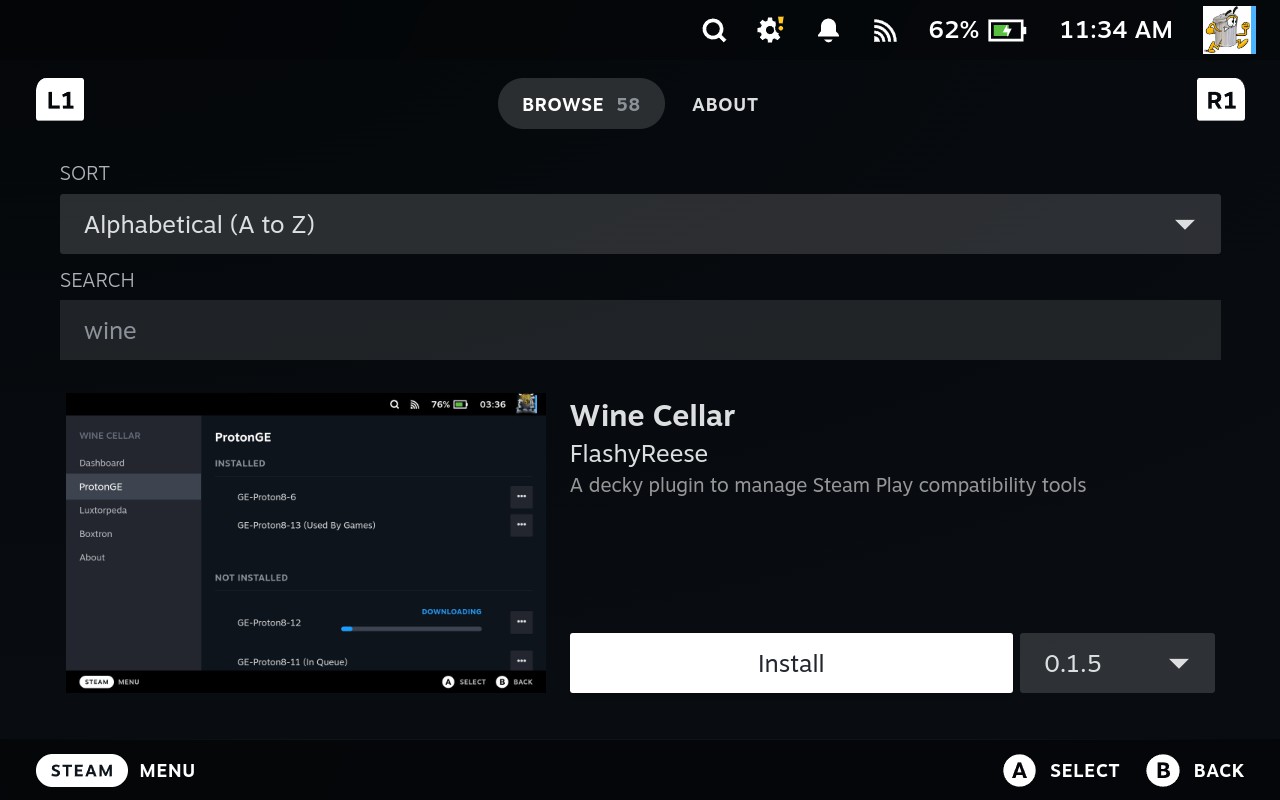
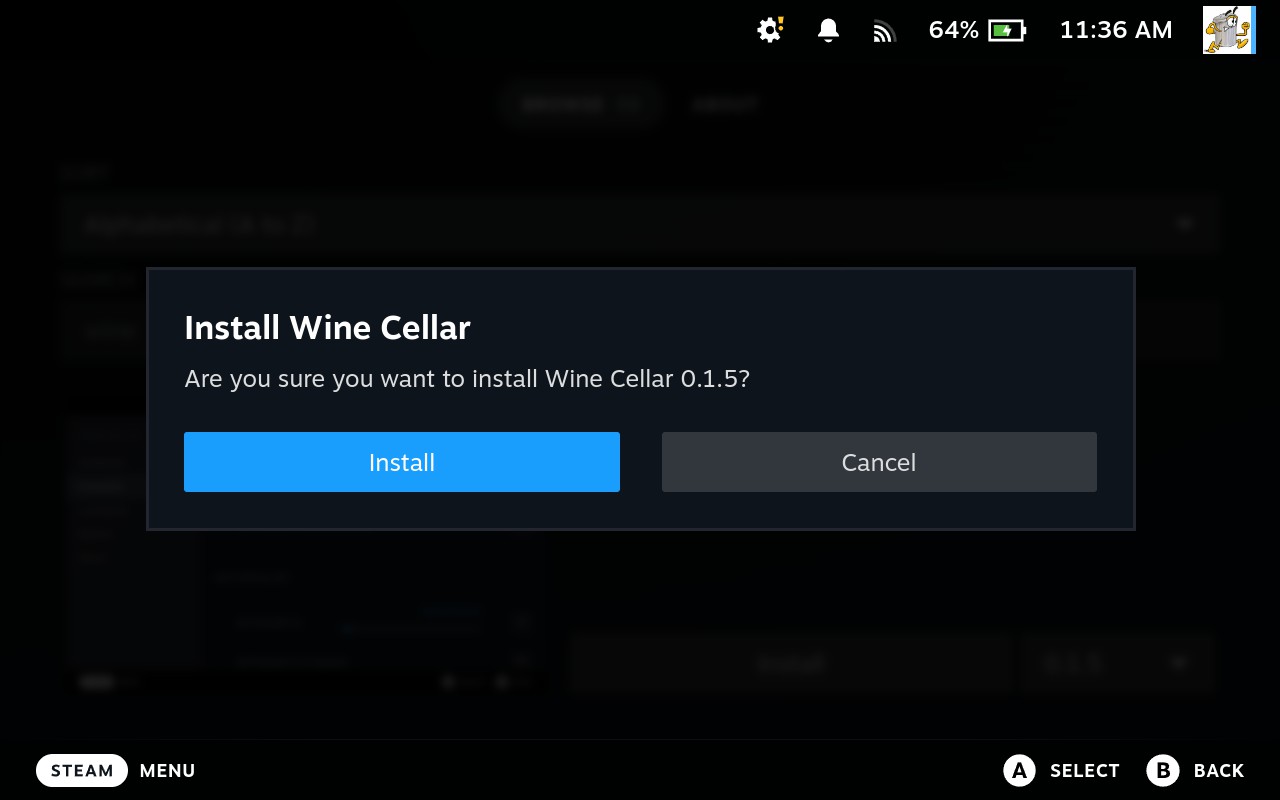
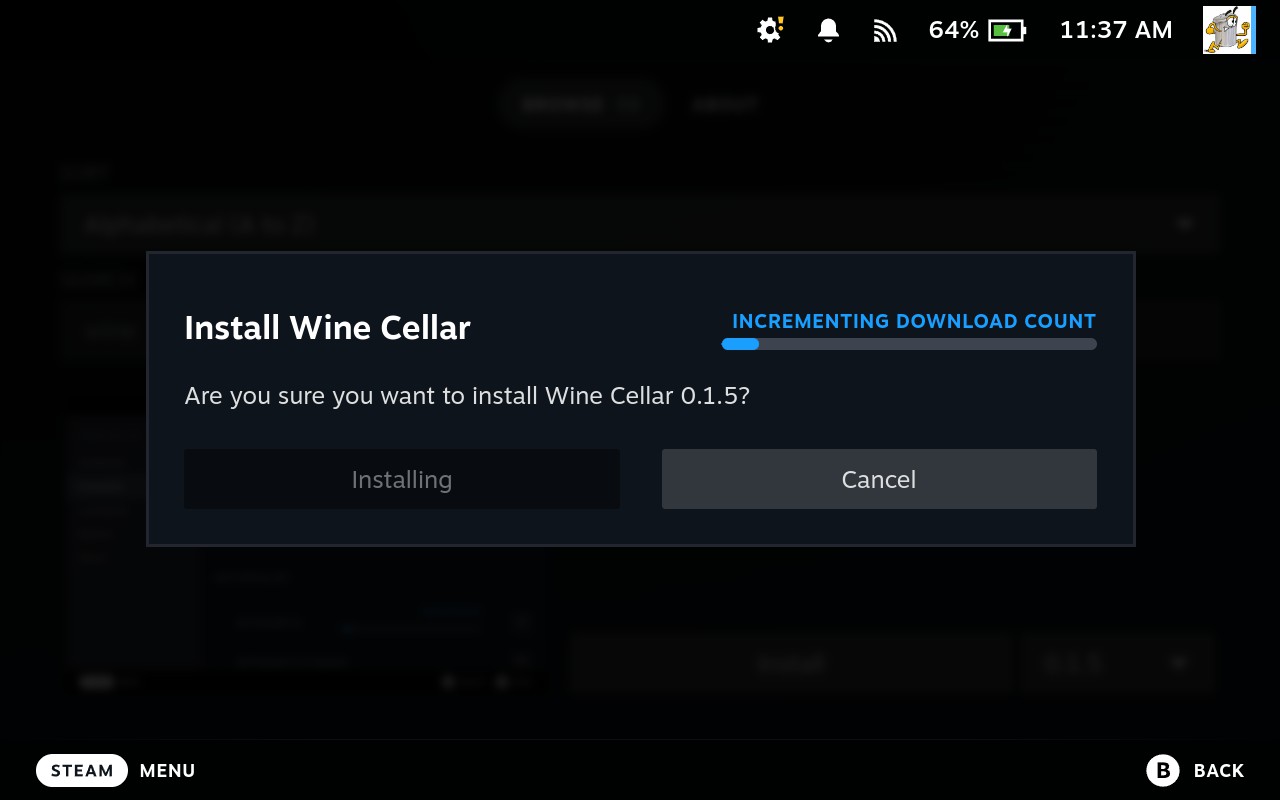
Step 2: Confirm Installation
- When asked, press
Ato confirm and begin the install.
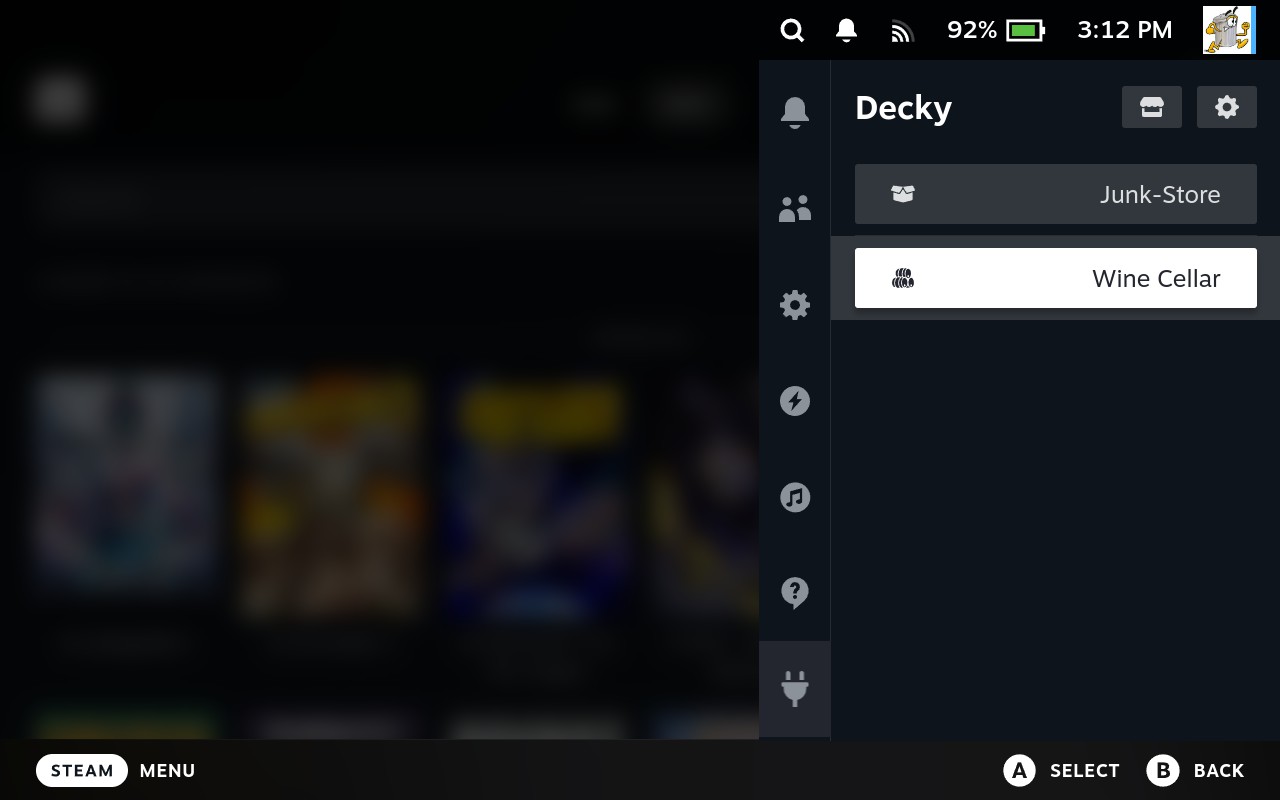
Step 3: Open Wine Cellar
- Press the three dots (QAM button) on your Steam Deck
- Select Wine Cellar
- Press
Ato open it - Press
Aagain on Manage
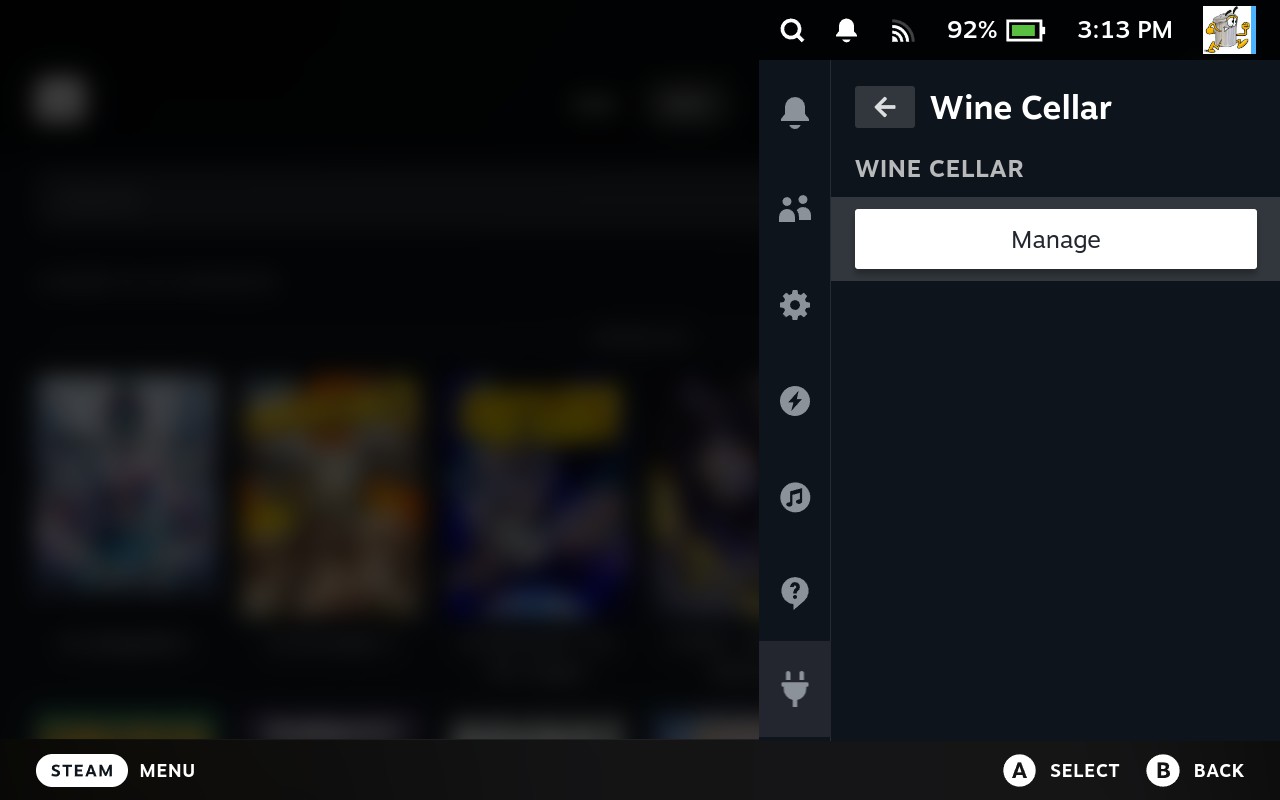
Step 4: View Installed Proton Versions
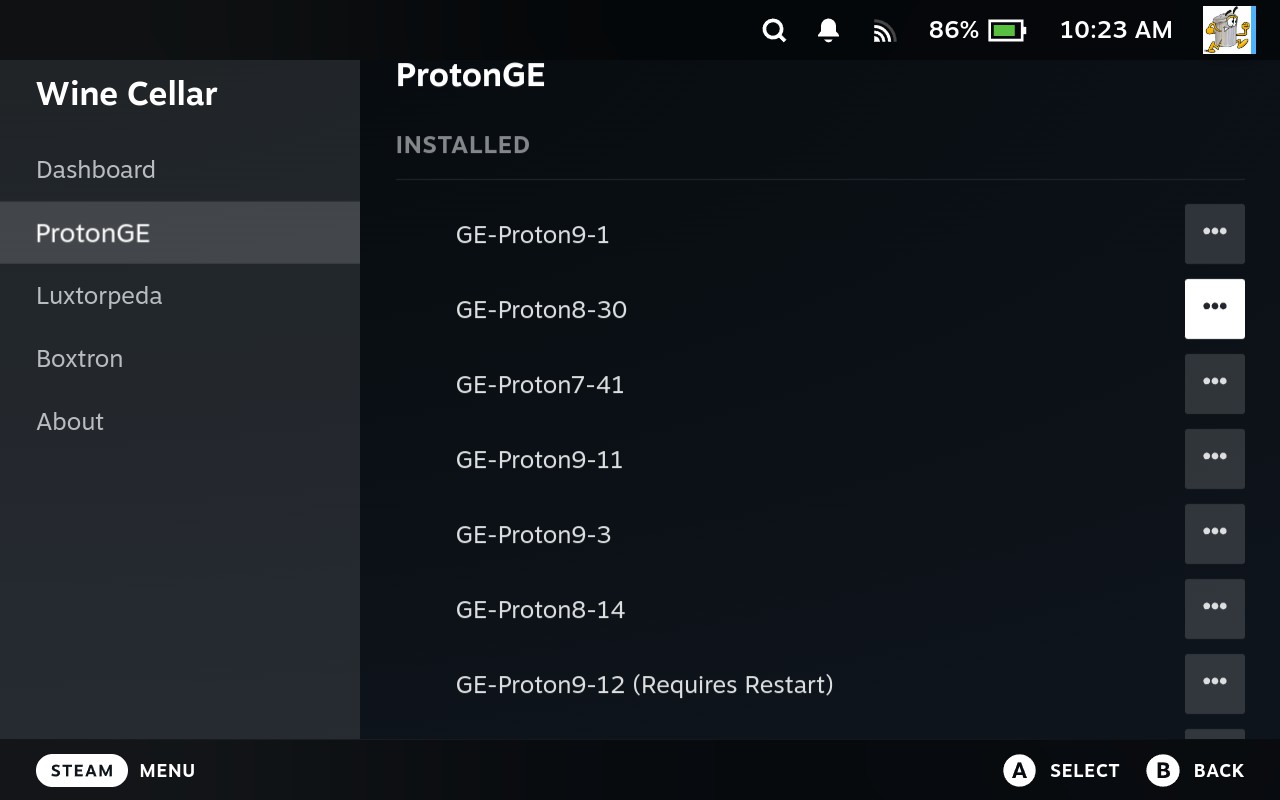
- The Wine Cellar Dashboard will show all Proton versions currently installed
- From here you can install, remove, or update versions
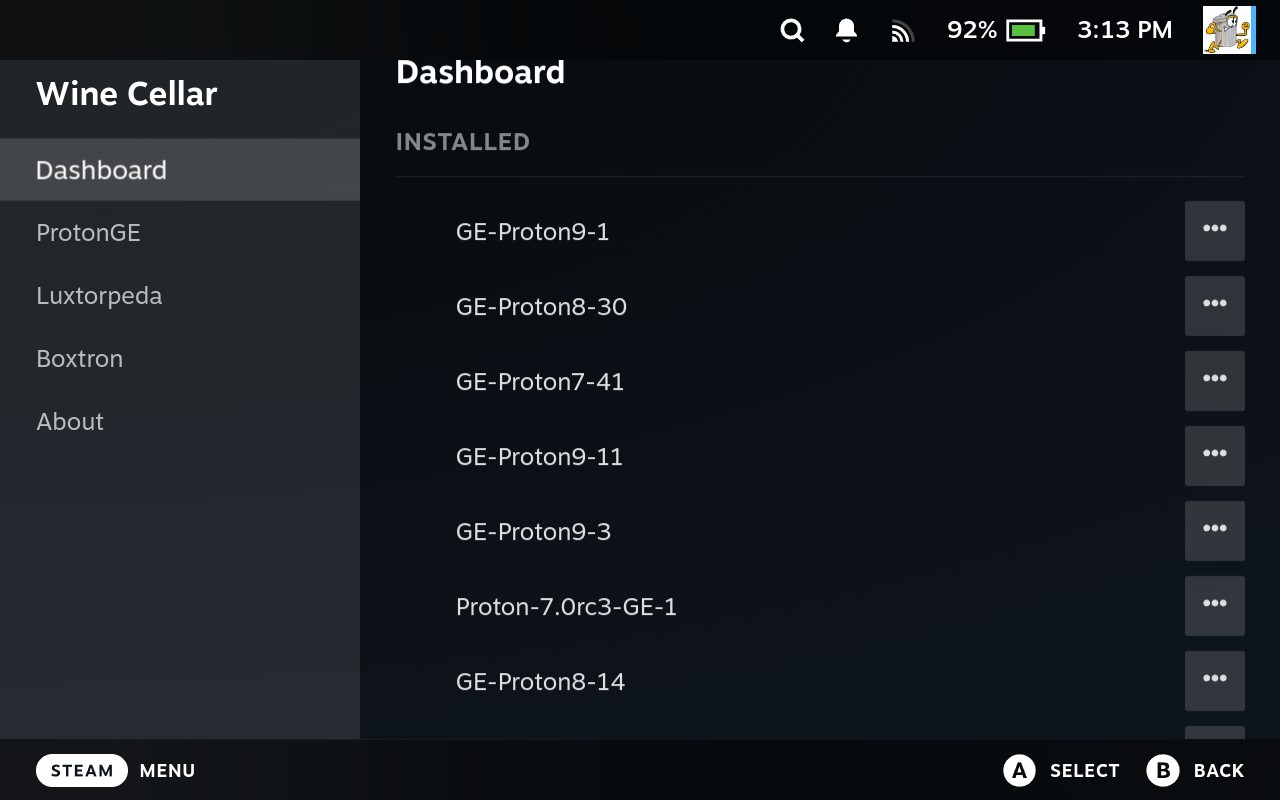
How to Install New Proton Versions
We recommend using GE-Proton versions because they support more games and fix more issues than the default versions.
Step 1: Find Your Version
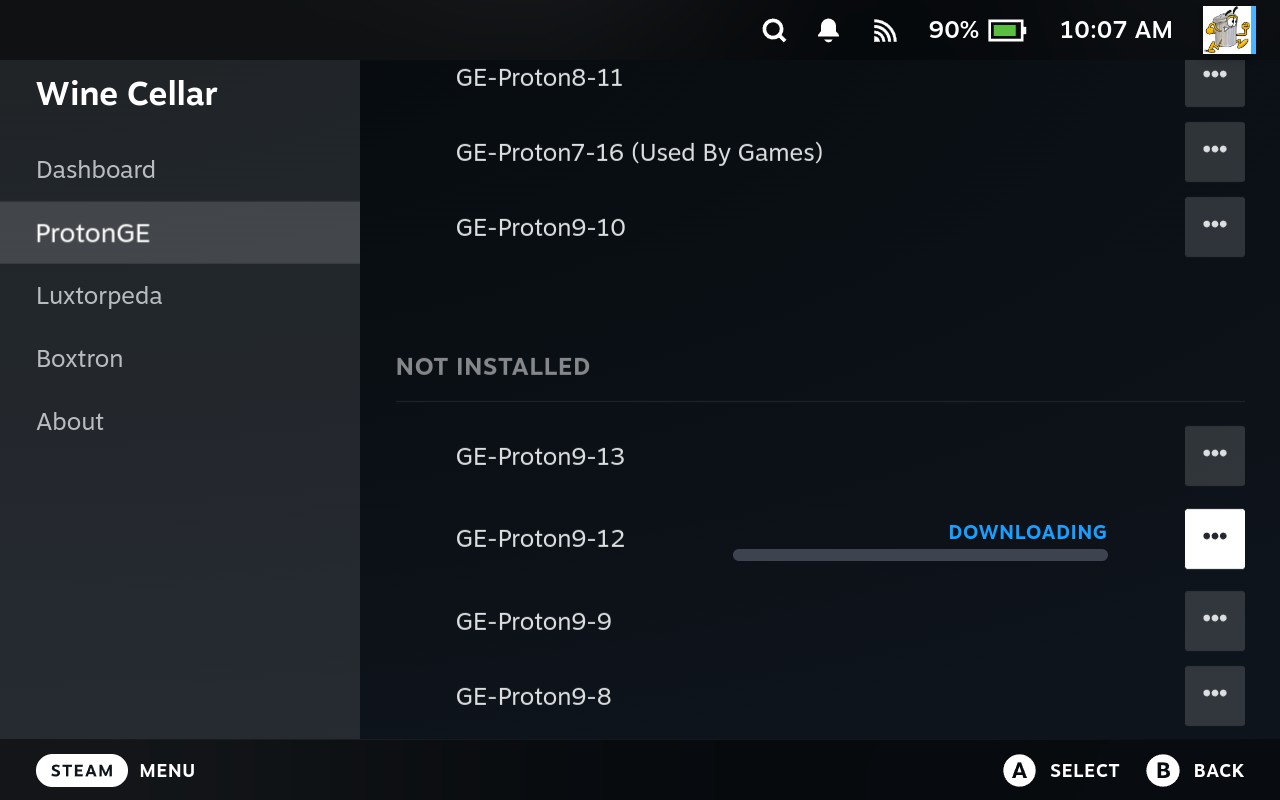
- Scroll to the GE-Proton version you want
- Move to the three dots, then press
A
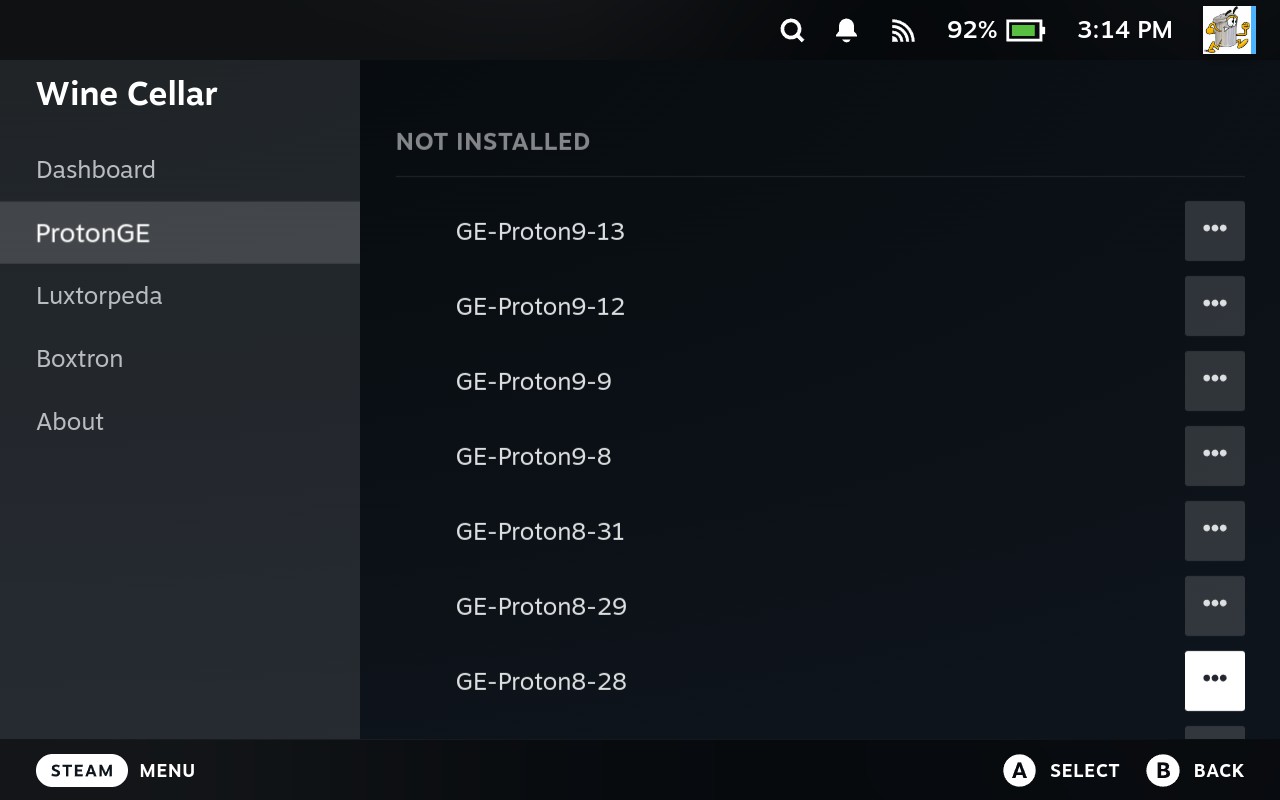
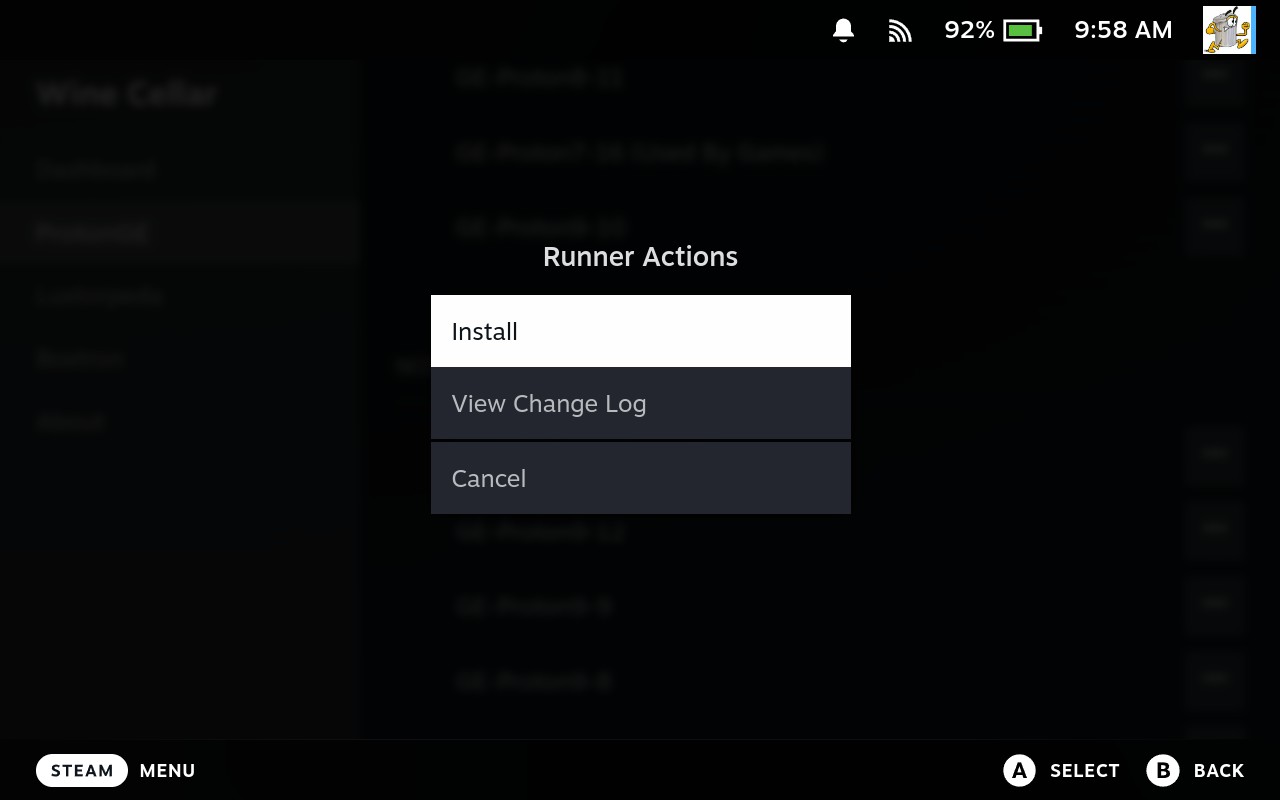
Step 2: Install and Reboot
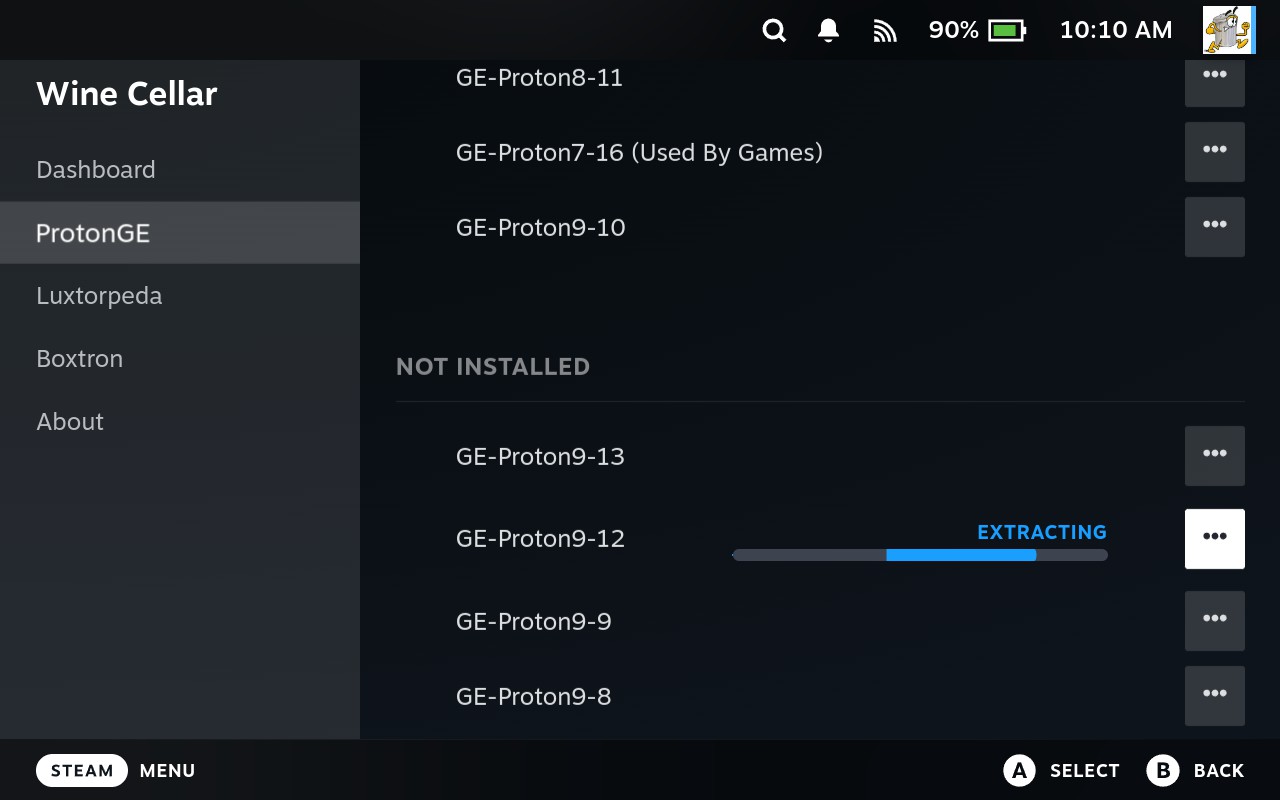
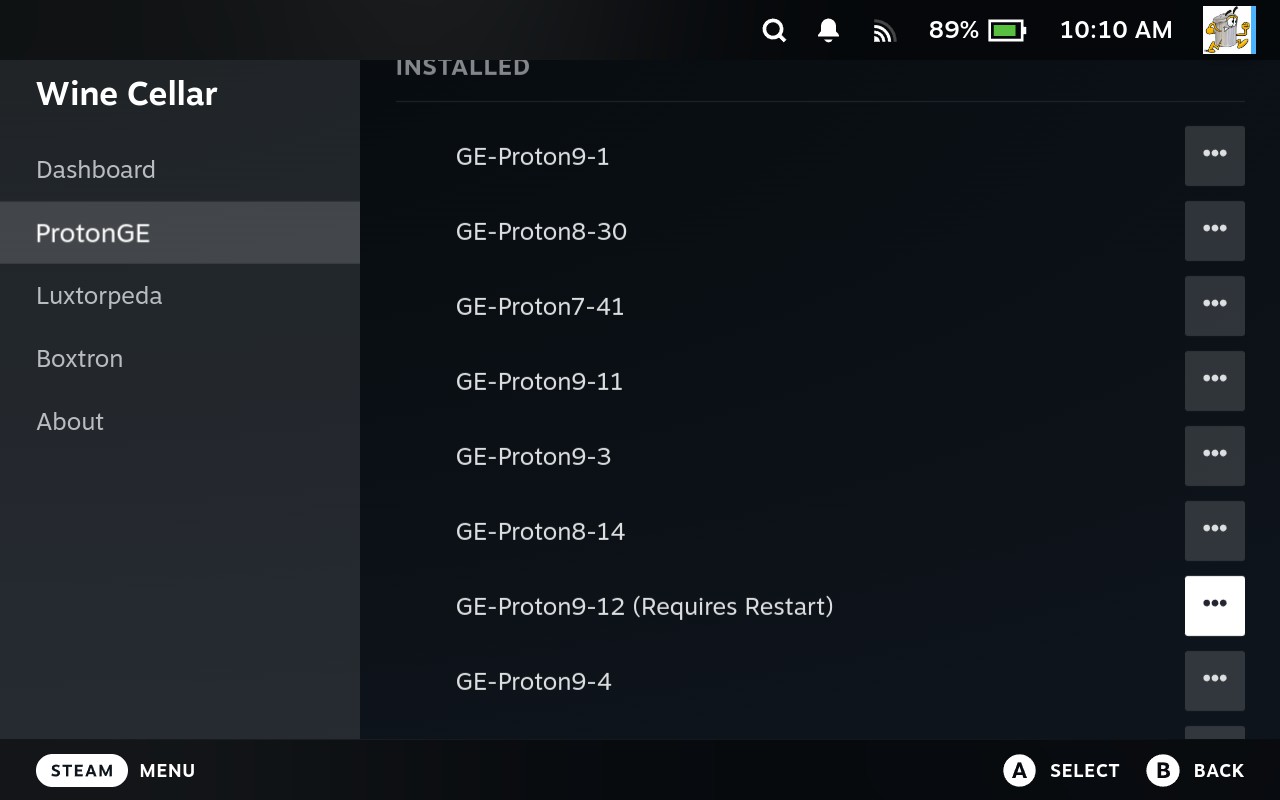
- It will now install (e.g., GEProton 9-12)
- Once finished, restart your Steam Deck to apply it
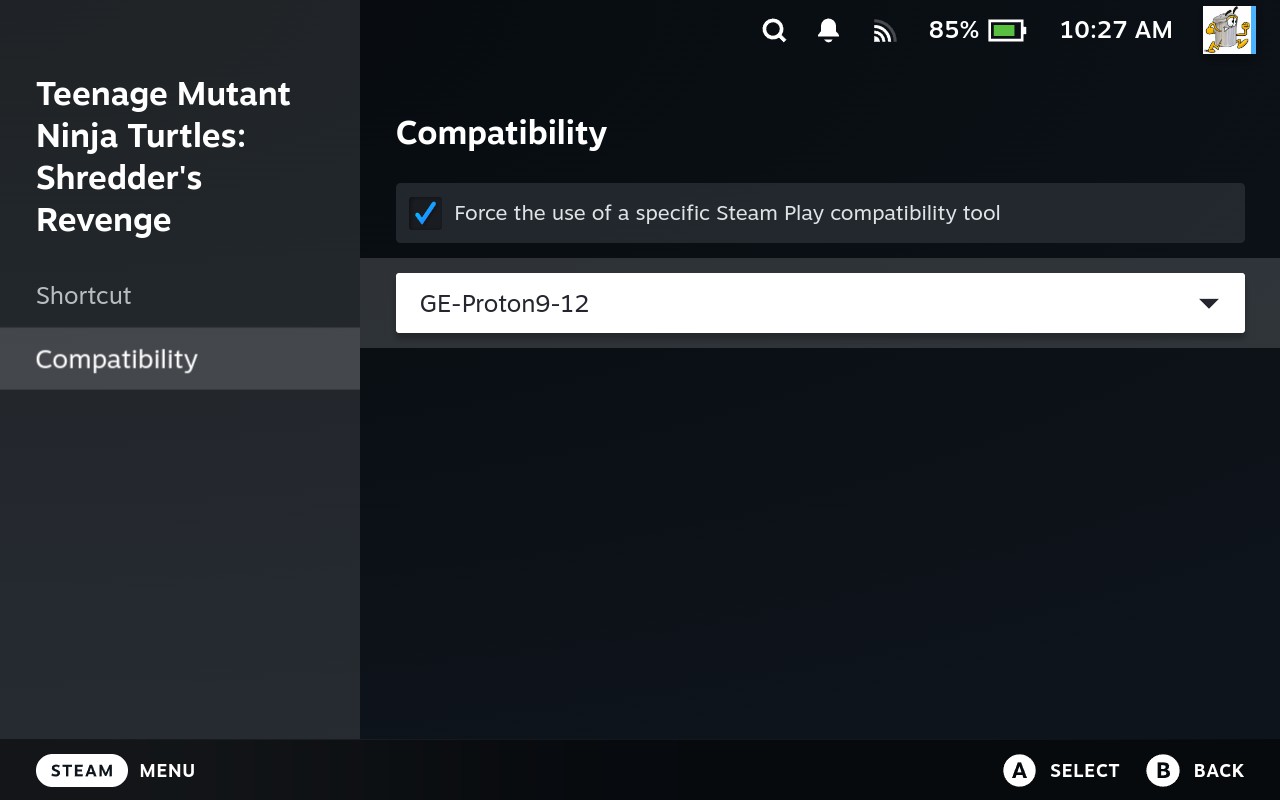
After restarting, go back to the game you want to run and hit Play.
How to Uninstall Old Proton Versions
Got a Proton version you don’t need anymore? Here’s how to clean it up:
- In the Wine Cellar Dashboard, scroll to the installed version
- Move to the three dots and press
A - Confirm the uninstall
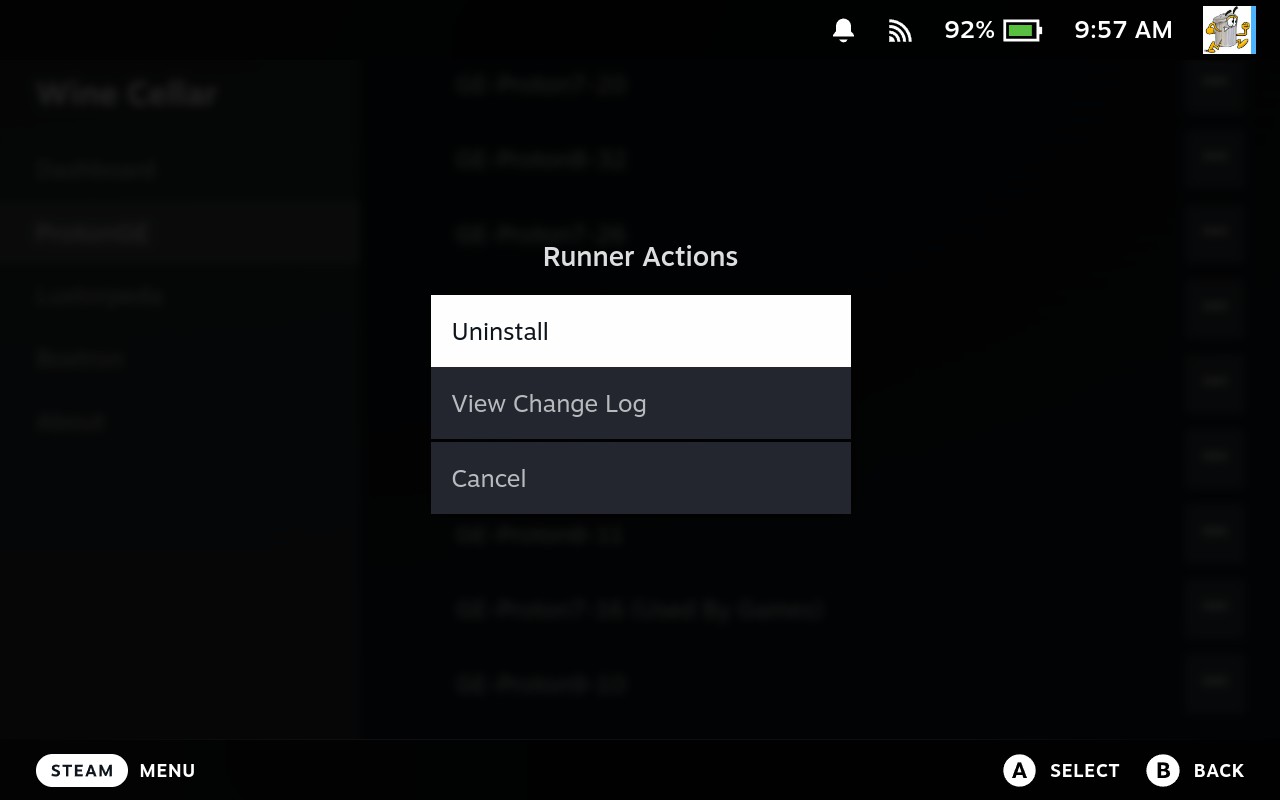
That’s it! The version will be removed from your system.
Final Tips
- You can set different Proton versions per game
- Once you set it, it stays saved (even after reboot)
- If unsure which Proton to use, check what’s recommended on our compatibility table unless ProtonDB suggests a specific version
- Use ProtonDB for up-to-date community tips
Need More Help?
If you run into trouble, check out:
- Universal: FAQ Section for common questions
- Universal: Troubleshooting Guide for technical issues
- Decky Plugin: Plugin-specific help and troubleshooting
- 2.0 Standalone: Version-specific help and troubleshooting
Still stuck? Get community help: