Ready to play your Epic Games library directly on Steam Deck without leaving Game Mode? The free Junk Store Decky plugin brings Epic Games integration to your Steam library, letting you install and launch Epic games seamlessly through Steam’s interface.
This guide walks you through installing the Junk Store plugin and logging in to your Epic Games account on a Steam Deck.
⚠️ Note: This guide assumes you already have Decky Loader installed.
Download Junk Store
You can download Junk Store from either of the following Decky Plugin stores:
Step-by-Step Installation
Step 1: Check Your Store Channel
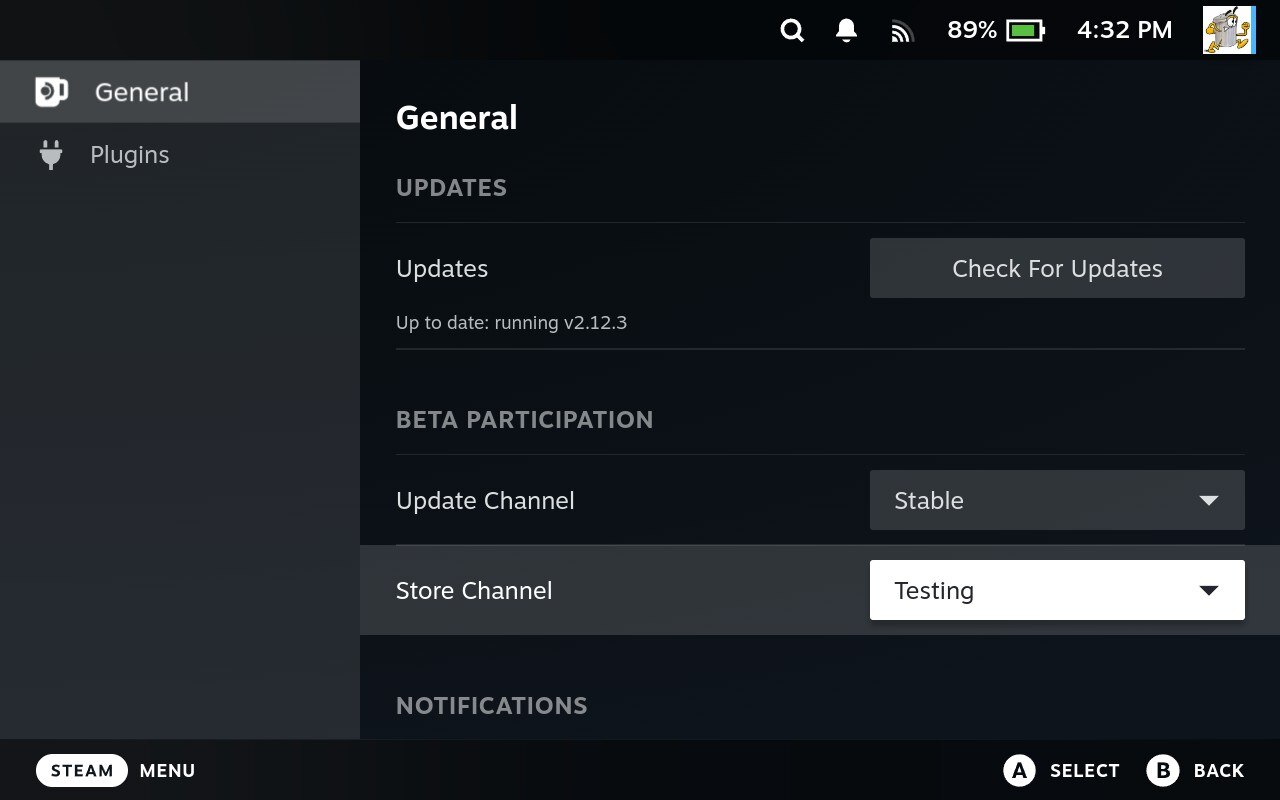
Make sure you’re using the correct Store Channel in Decky.
- Press the three dots (…) button
- Go to the gear icon in the top-left
- Set your Store Channel to either:
Defaultfor the main storeTestingfor the test version
Step 2: Install Junk Store
- Go back to the Decky Loader main screen
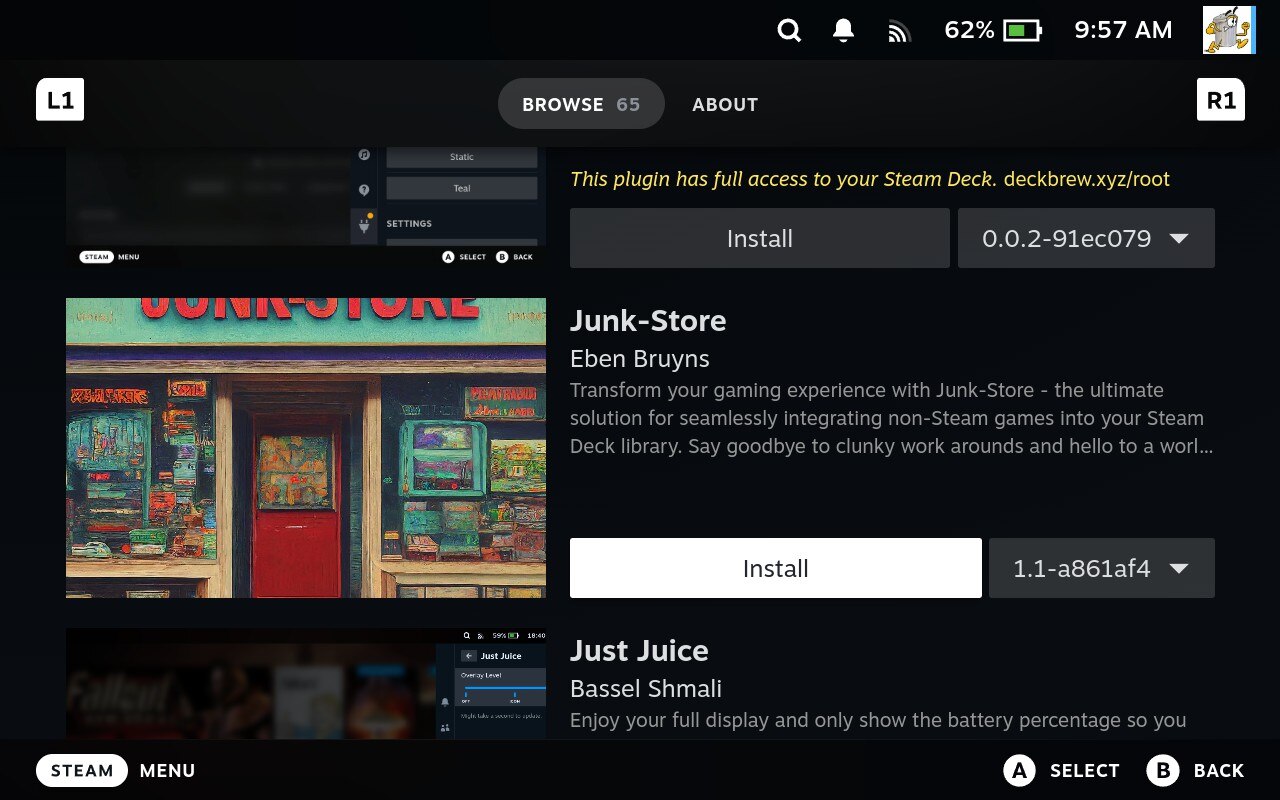
- Open the Decky Plugin Store
- Search for or scroll to Junk Store Plugin
- Select it and click Install
💡 You can also choose a specific version before installing.
Step 3: Install Dependencies
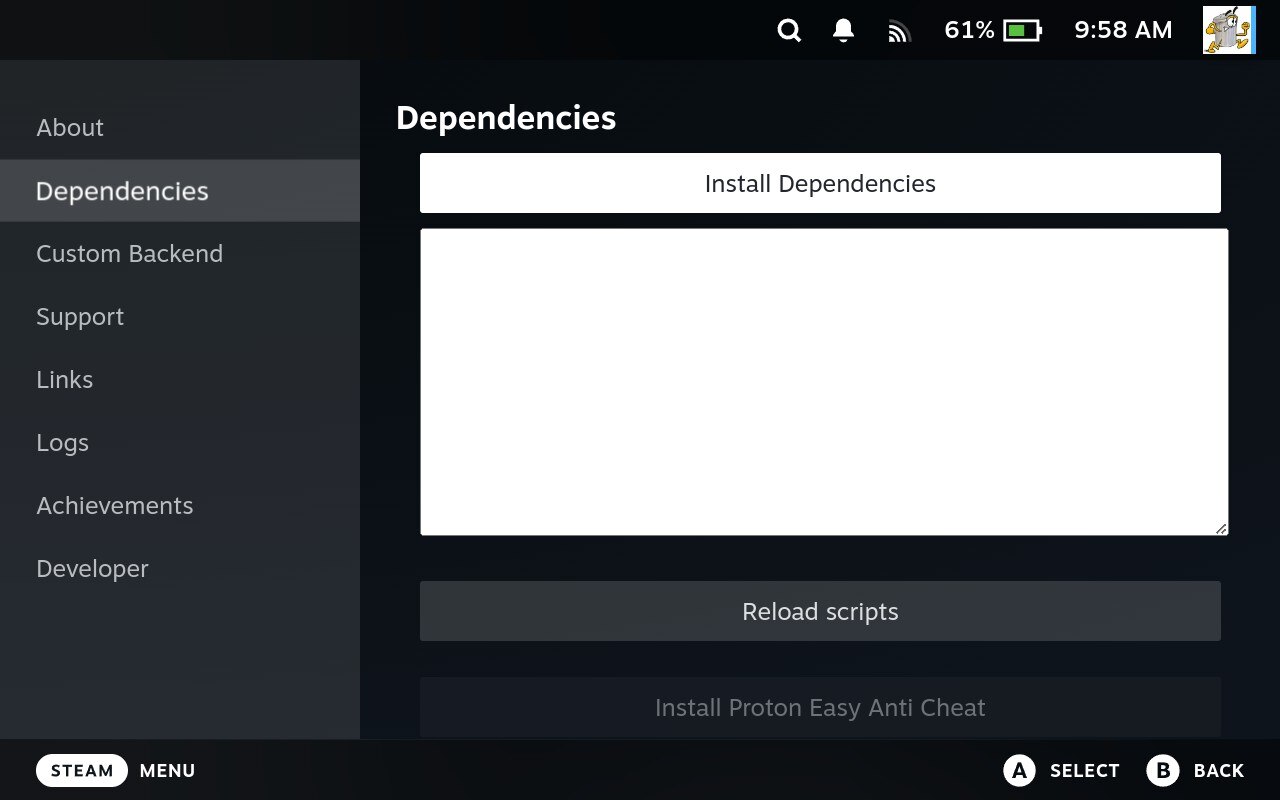
- After installing, open Junk Store
- Go to the About section
- Select Dependencies > Install Dependencies
⏳ This might take a while (around 30 seconds, or longer). Just wait — it’s normal.
Step 4: Log in to Epic Games
- From the Junk Store menu, select Games
- You’ll be prompted to log in to your Epic Games account
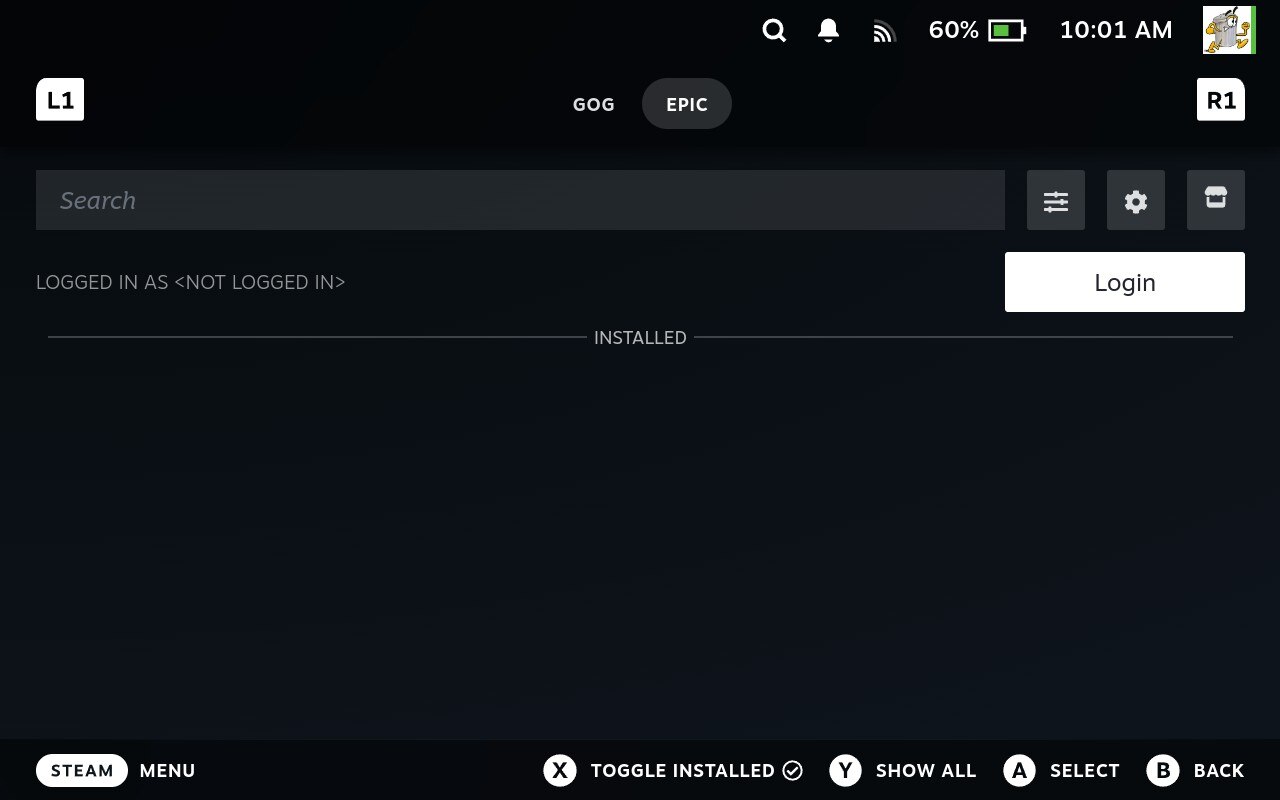
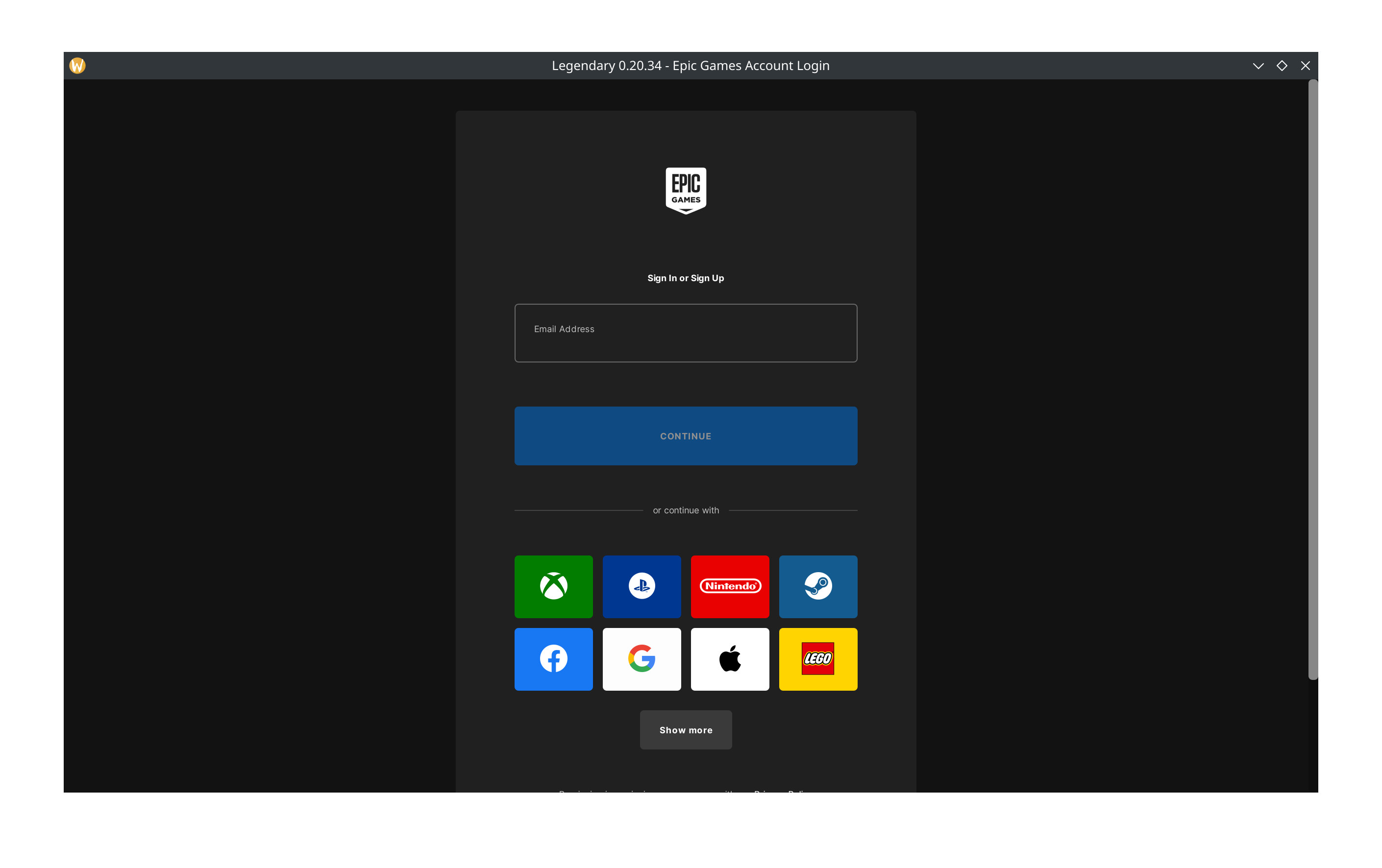
✅ Make sure the Epic account you log in with has games in its library, or nothing will show up.
Step 5: Use Desktop Mode for Third-Party Logins
If you want to log in using Xbox, PlayStation, Nintendo, or another method:
- Switch to Desktop Mode
- Follow our guide: Login with OAuth / Third-Party
Step 6: View Your Library
- After logging in, your Epic library should load automatically
- If it doesn’t:
- Scroll down and press
Yon Show All - Make sure Show Installed is not selected
- Clear the search box if needed
- Scroll down and press
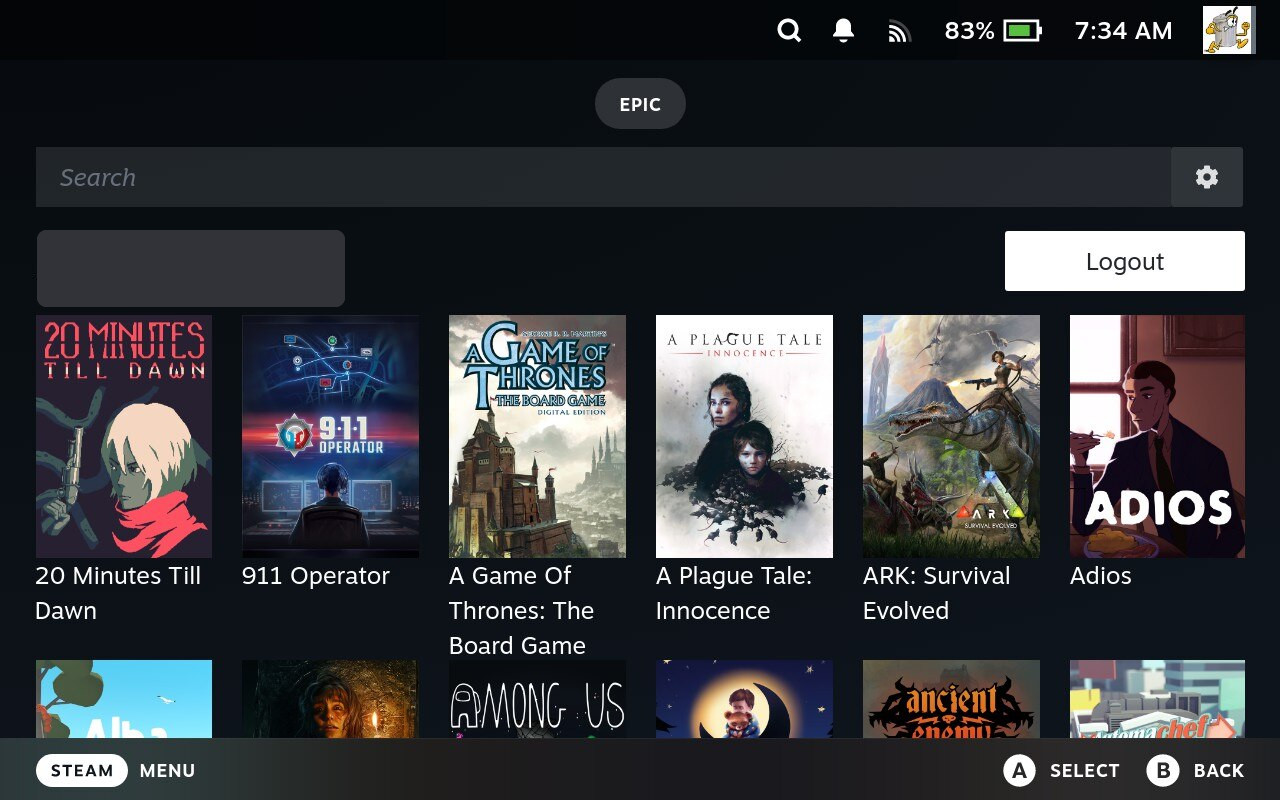
⚠️ Games that need EA App or Origin won’t show up — they aren’t supported.
Step 7: Test with a Small Game
To make sure everything works:
- Try installing a smaller game
- We recommend something simple like DOOM 64
❗ Avoid huge or complex games right away. Some games need extra setup to work properly on Steam Deck.
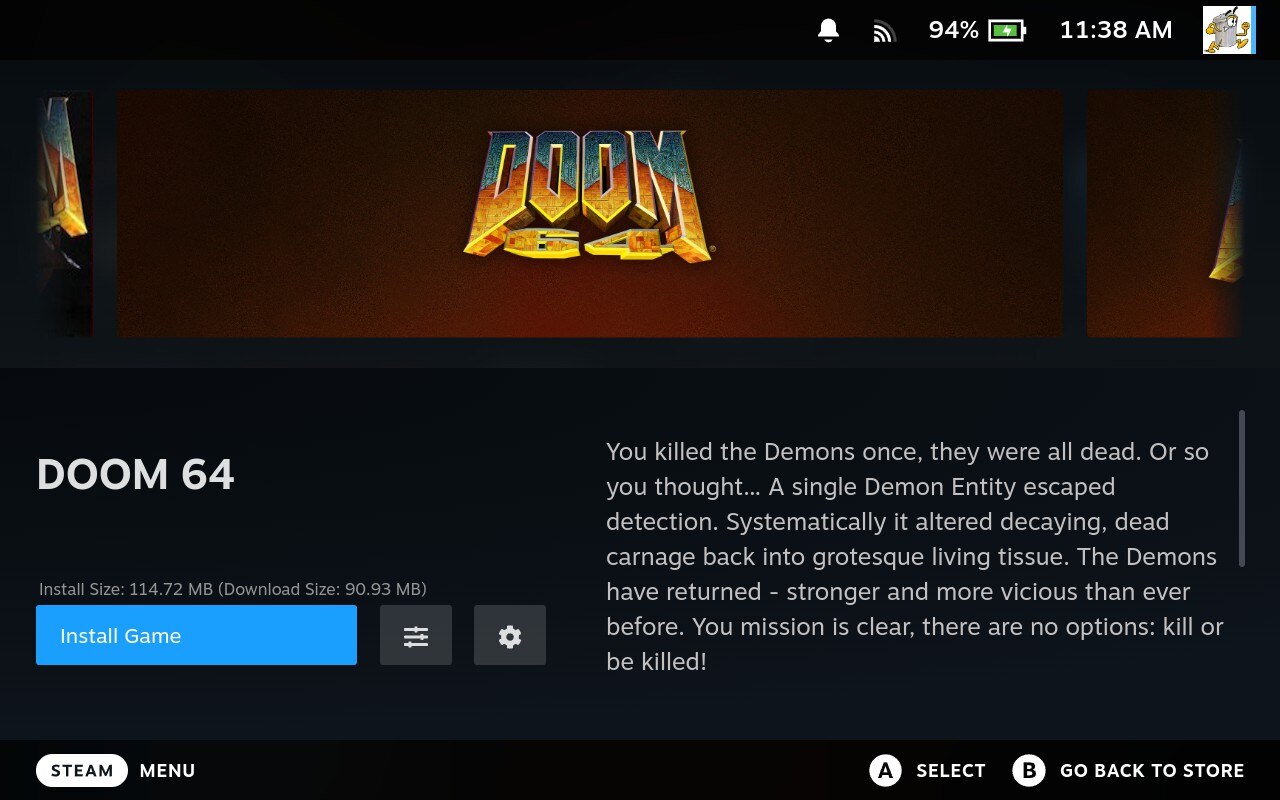
Step 8: You’re Ready to Go!
Once you’ve installed and tested a game, you’re all set.
Need More Help?
If you run into trouble, check out:
- Decky Plugin: Plugin FAQ for common questions
- Decky Plugin: Plugin Troubleshooting for technical issues
- General: Plugin Help Guide for setup assistance
Still stuck? Get community help:
📺 Bonus: Video Guide
Steam Deck Gaming made a great video showing how to install Junk Store (including Fall Guys):

📖 Bonus: Written Guide
Noah from SteamDeckHQ wrote an awesome step-by-step article: