Looking for an alternative way to log into Epic Games without using your password? OAuth login lets you use your existing accounts from Google, PlayStation, Xbox, and more to securely access Epic Games on your Steam Deck through Junk Store.
Follow these steps if you’d like to log into your Epic Games account using third-party authentication via one of the following options:
| PlayStation | Lego | Nintendo | |
| Xbox | Steam | Apple |
Steps for Logging in to Epic Games
This guide uses Google for logging in, but the steps are the same for other third-party methods.
-
Switch to Desktop Mode
If you don’t have an external mouse and keyboard connected, you may want to download Core Keyboard from the Discover Store. -
Open Steam in Big Picture Mode Press the Steam button and switch to Big Picture Mode (the controller-friendly interface).
-
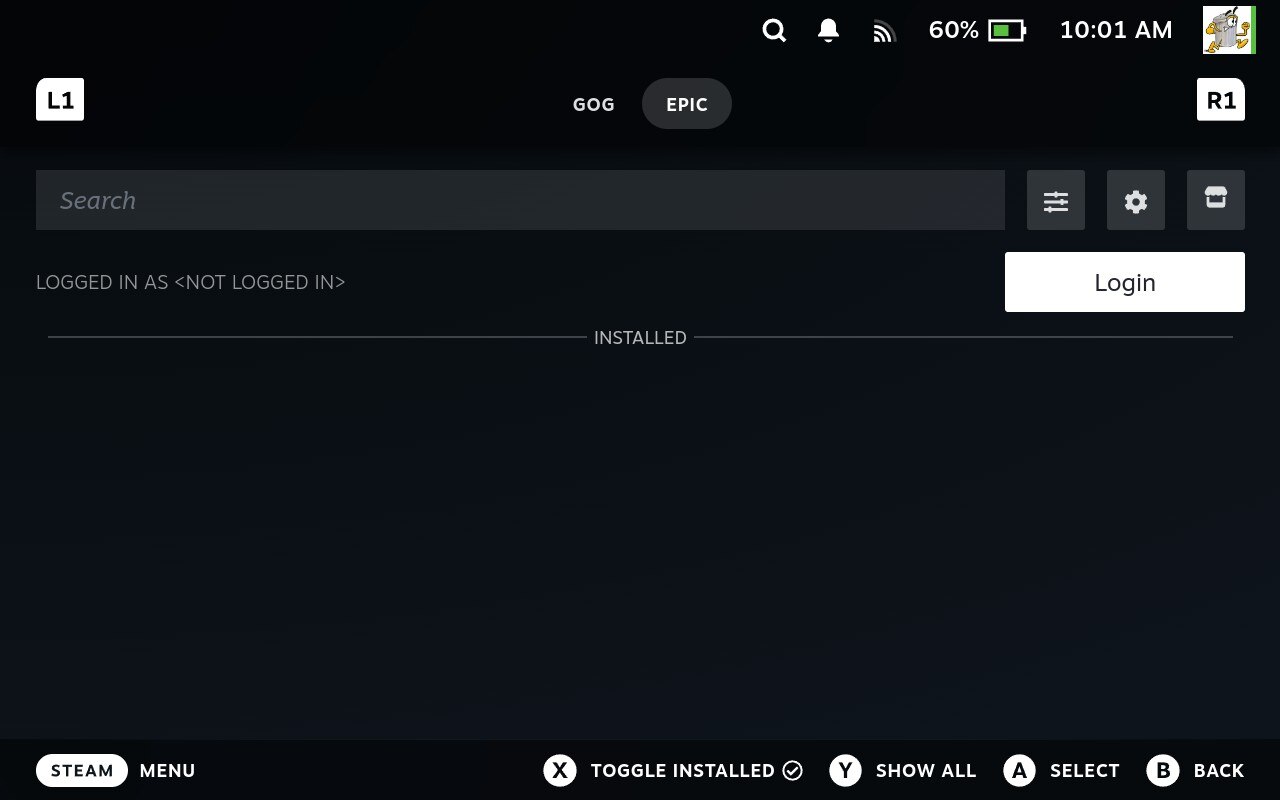
Navigate to Epic Tab in Junk Store
Go to Junk Store > Games > Epic Tab and select Login.
-
Choose Your Login Method
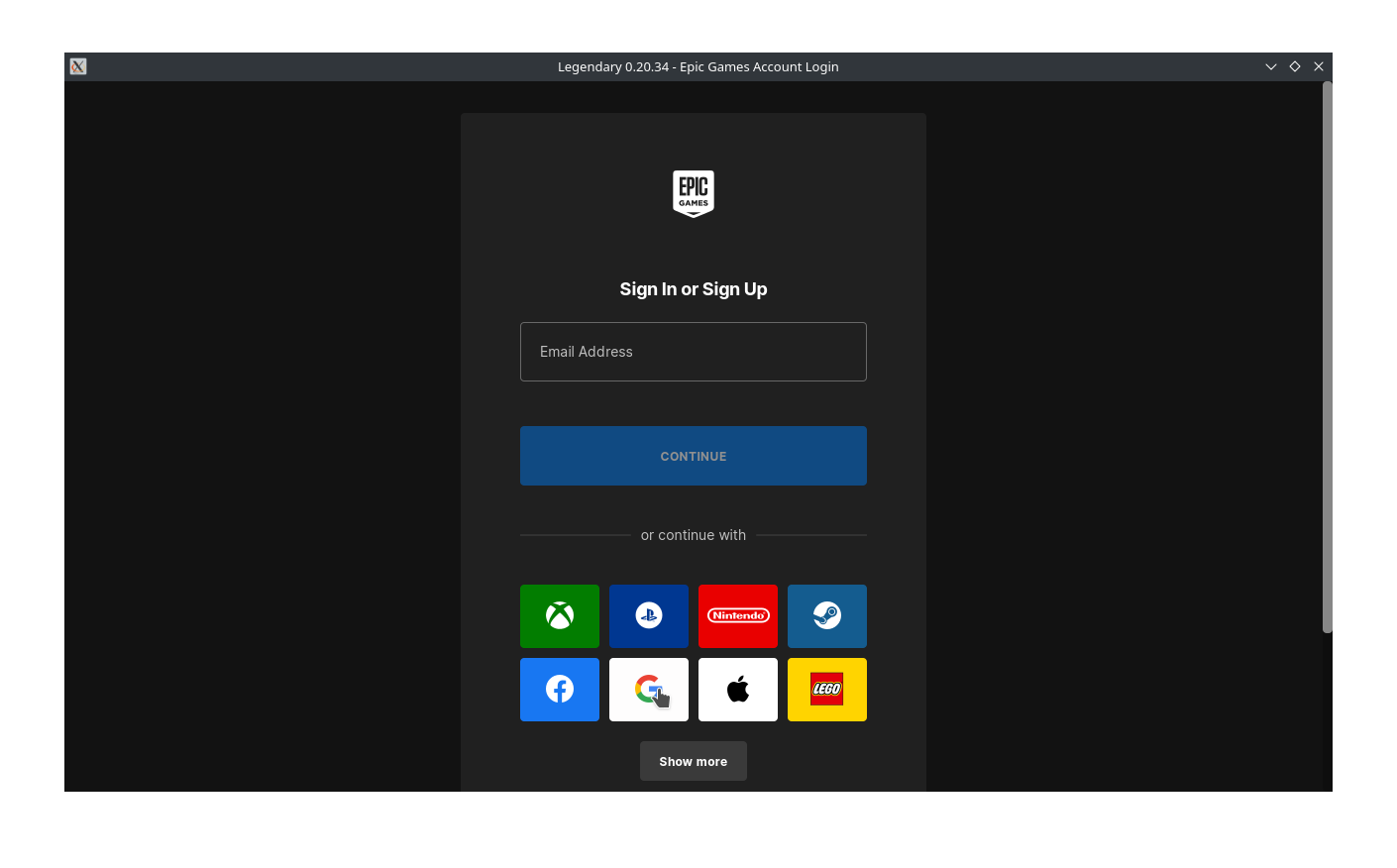
Once the Epic Games Login screen appears, select your login method. A browser will open for you to log in with your chosen method.
-
Login via Google
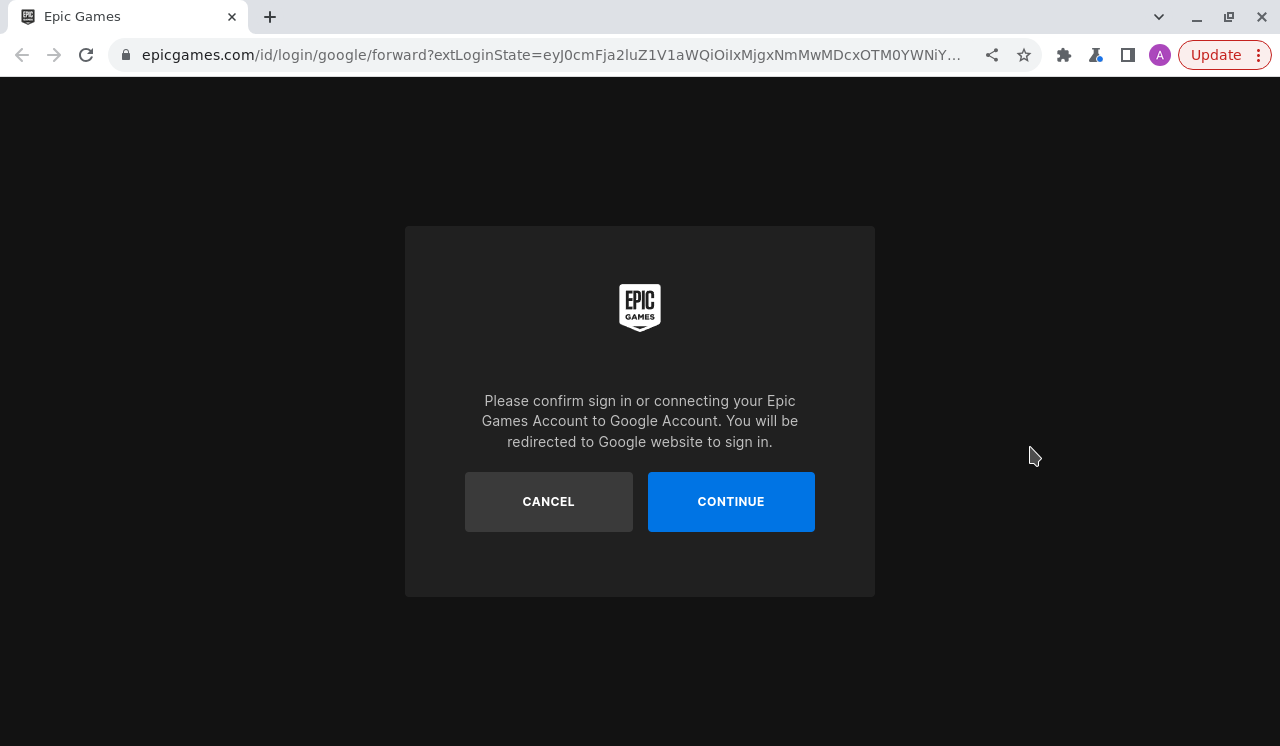
In this example, we’ll use Google. Select Continue when prompted.
-
Sign In with Google
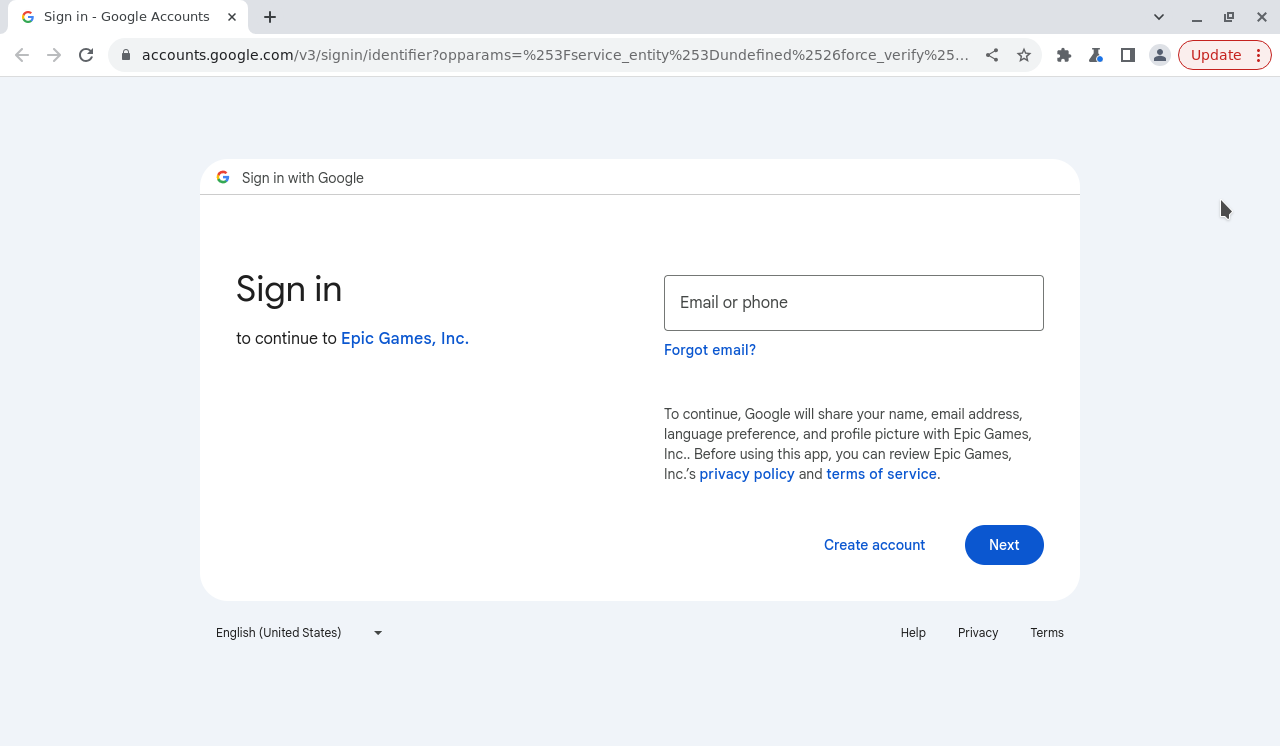
Enter your Google credentials on the sign-in screen.
-
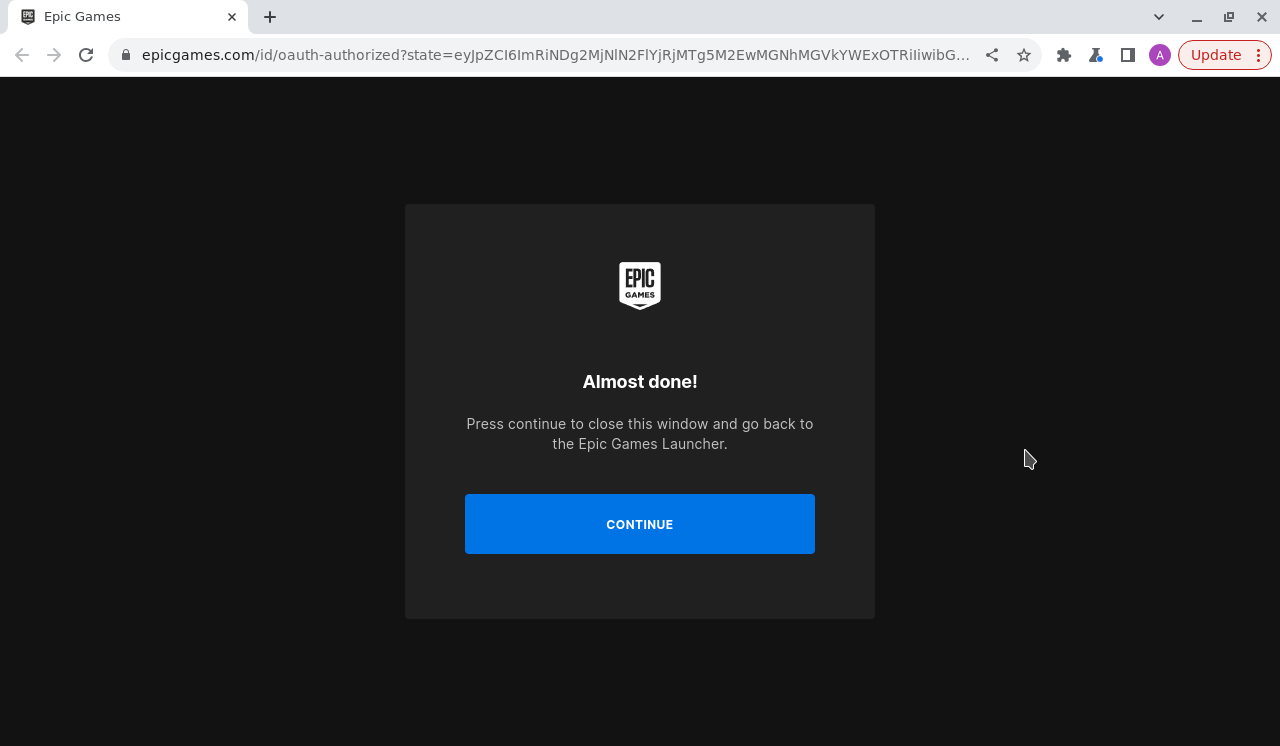
Final Step of Login
After logging in, you’ll see a prompt to click Continue.
-
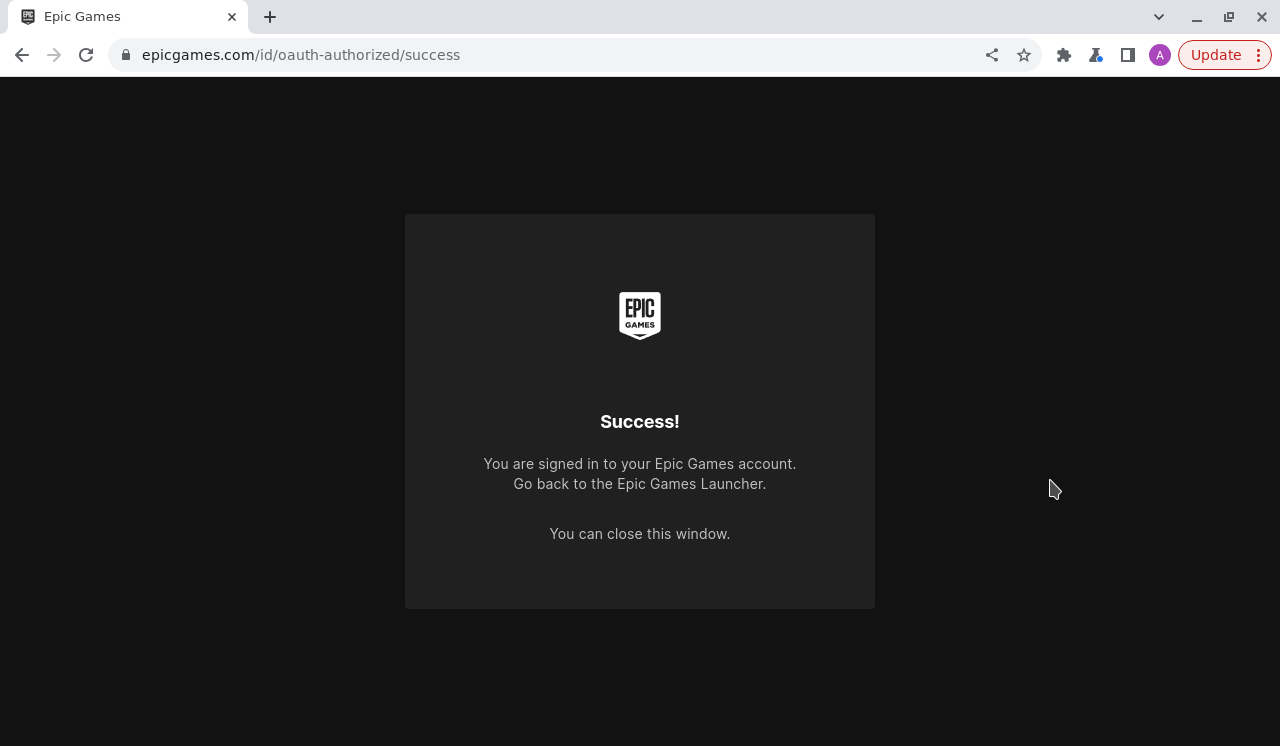
Close the Browser Window
After completing the login, close the browser window and return to the Epic Games Launcher.
-
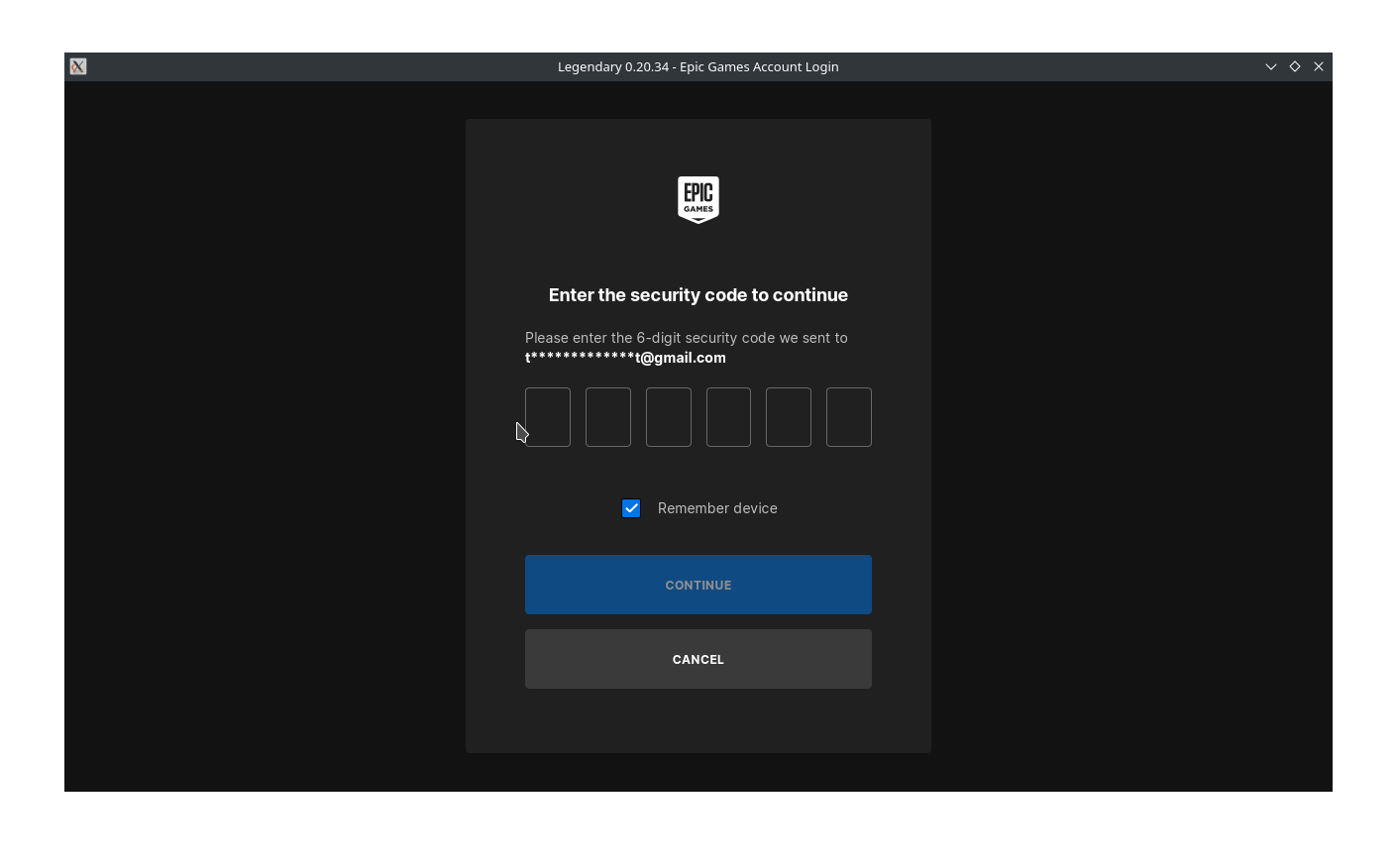
Enter 2FA Code (If Prompted)
If you’re asked, enter your two-factor authentication (2FA) code. After entering the code, you’ll be returned to Big Picture Mode.
-
Exit Big Picture Mode
Press the Steam button, navigate to Power, and select Exit Big Picture Mode to return to Game Mode. -
Go Back to Junk Store
Once in Game Mode, press the three dots, go back to Junk Store > Games, and you should now be logged into your Epic account. -
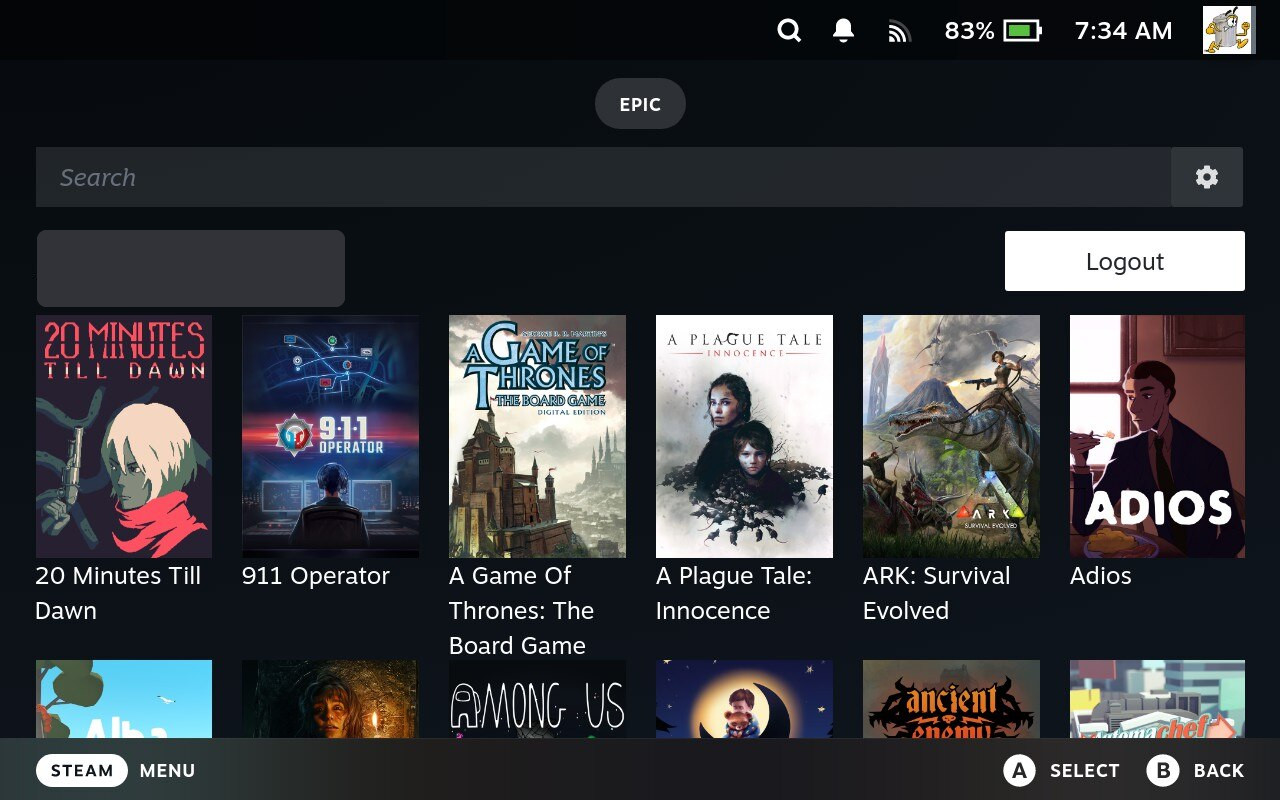
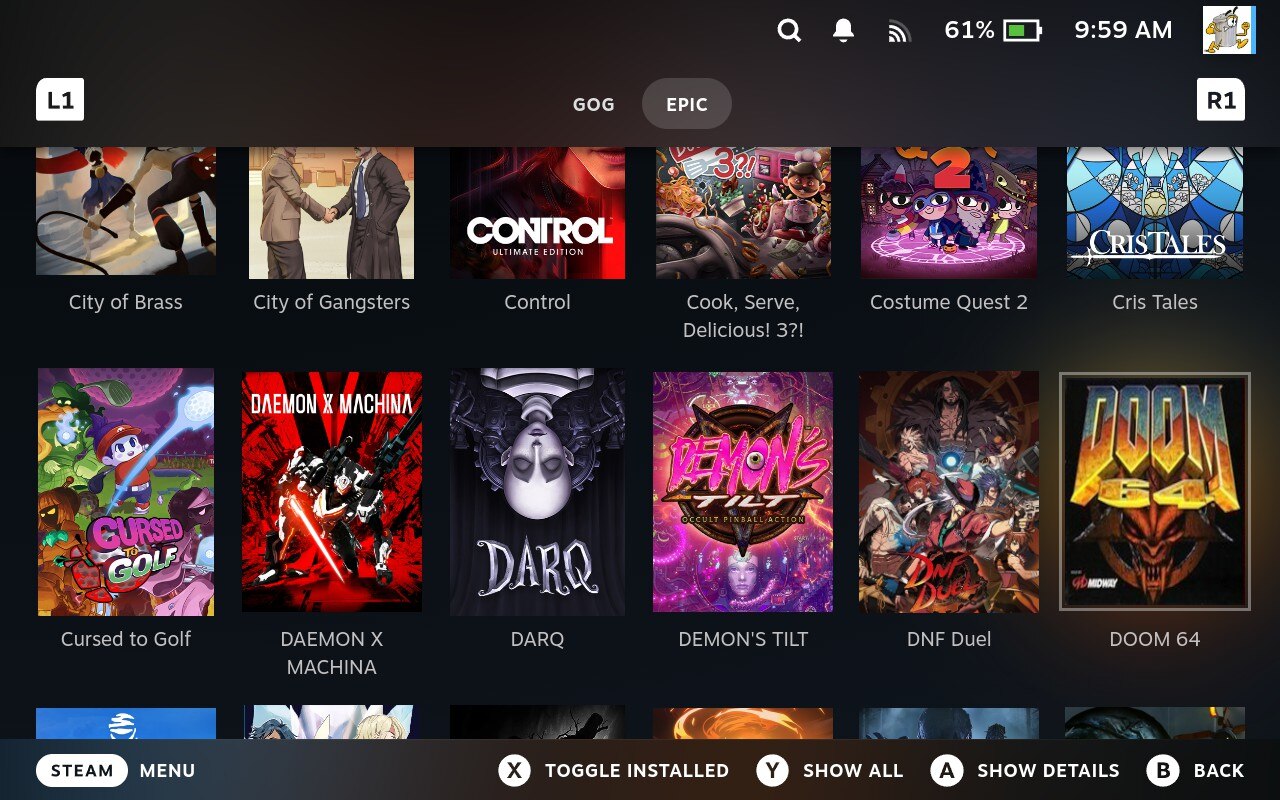
Check Your Library
Your Epic Games library should now populate. If it doesn’t, navigate down and press Y to select Show All.
- Ensure Show Installed is not selected.
- Clear any text from the search box to see all games.
Note: Games requiring the EA app or Origin will not appear in your library due to lack of support from Epic/Legendary.
-
Install a Game to Test
Choose a game from your library to install. We recommend starting with a game that is known to work well on the Steam Deck.- Visit our Games Tested page for a list of games that are known to work.
- Avoid choosing a large or complex game for the first test.
Tip: Some games may require additional tweaks to run properly on the Steam Deck. Doom 64 is a great test game if you have it.
-
You’re Ready to Play!
Once you’ve tested a smaller game and it works, you’re good to go!
Need More Help?
If you run into trouble, check out:
- Universal: FAQ Section for common questions
- Universal: Troubleshooting Guide for technical issues
- Decky Plugin: Plugin-specific help and troubleshooting
- 2.0 Standalone: Version-specific help and troubleshooting
Still stuck? Get community help: