Tip of the Week: Easily Install Game Dependencies with Junk Store 2.0
This Week’s Pro Tip: Games won’t launch due to missing Windows components? Junk Store 2.0 includes built-in dependency management directly in Game Mode menus - no Protontricks needed!
Note: This feature is exclusive to Junk Store 2.0 Standalone.
The Problem
Your game crashes on launch with missing Visual C++, .NET Framework, or DirectX errors. Fixing this usually requires learning Protontricks, Winetricks, or manually downloading and installing dependencies yourself through Desktop Mode.
The Solution
Most games work out of the box thanks to Visual C++ Redistributable 2022 (x64), which Junk Store automatically installs with every Epic and Amazon game. For games needing extra dependencies like .NET, DirectX or other Visual C++ versions, you can install them with one click - all from Game Mode.
How to Install Dependencies
-
Navigate to the game inside Junk Store and click the ⚙️ Settings menu
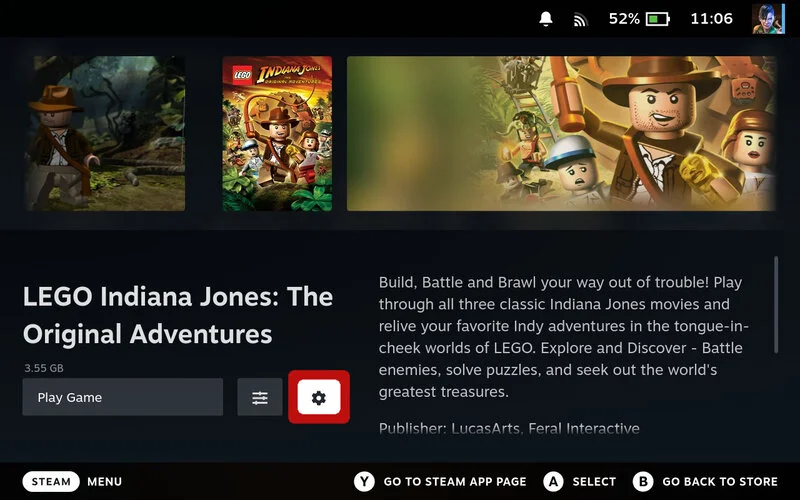
Click the ⚙️ Settings menu on the game page
-
Select “Installation” from the dropdown menu
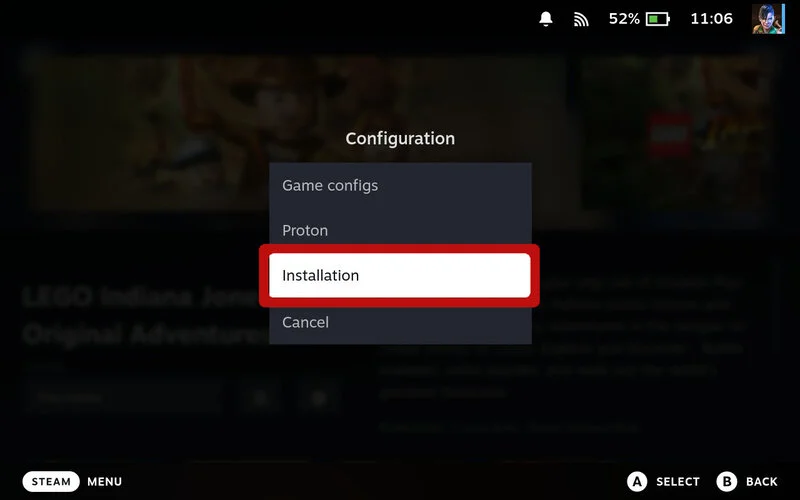
Choose Installation from the settings menu
-
Set dropdown to “Expert” mode or higher (if needed) and click “Dependencies”
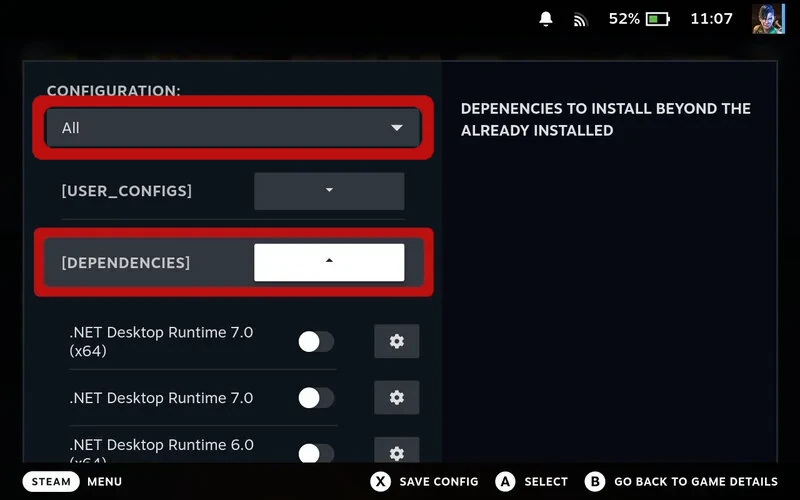
Set to Expert mode or higher and open the Dependencies section
-
Toggle needed dependencies on (blue = will install) and Press X to save changes
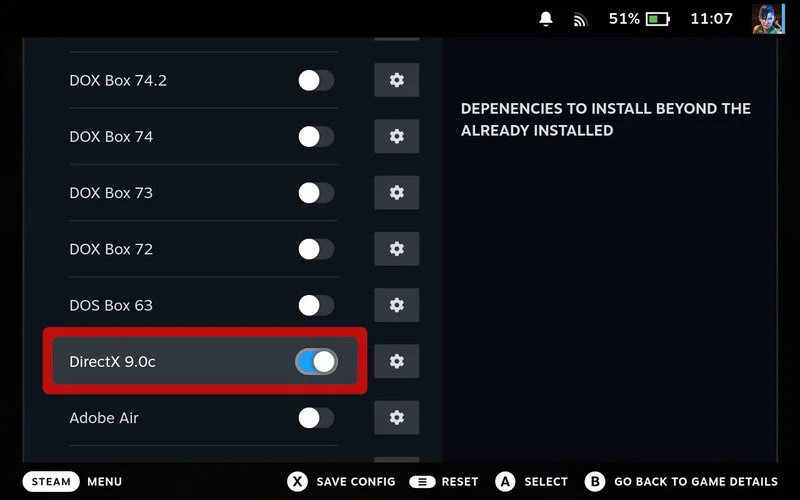
Toggle the dependencies you need - blue means it will install
-
Launch the game - Dependencies will automatically install on first launch
All dependency configurations are saved to your game’s settings and persist between updates and reinstalls - configure once and forget about it!
Pro Tips
Next Week Preview
Coming next week: Changing Your Proton Version - Experiencing black screens or compatibility issues? Learn how to check your current Proton version and switch to a different one to fix game compatibility problems!
Hope this tip helps! Questions? Our team is always ready to help.
Cheers,
The Junk Store Team
Ready to skip the Desktop Mode hassle?
🚀 Try Junk Store 2.0 Free for 7 DaysStop fighting with Protontricks - install dependencies with one click
Have questions about this tip? Join our community on Discord or Reddit!