Tip of the Week: Download Anti-Cheat Dependencies for EAC and BattlEye
This Week’s Pro Tip: Some games require anti-cheat dependencies to run properly. Junk Store makes it easy to download and enable them in game mode.
The Problem
You’ve downloaded your game and launched it, only to get stuck at an EAC or BattlEye screen and unable to progress further. Or you get into the game only to be kicked immediately due to anti-cheat not being installed.
There’s an easy fix for this in Junk Store, all in Game Mode. You can download and install anti-cheat dependencies and then toggle them on without leaving Game Mode. No restart needed either.
Before you ask, no this will not make Fortnite work. The anti-cheat for this game is not Linux-compatible.
How to Download Anti-Cheat Dependencies
- In Junk Store, go to About > System or Dependencies
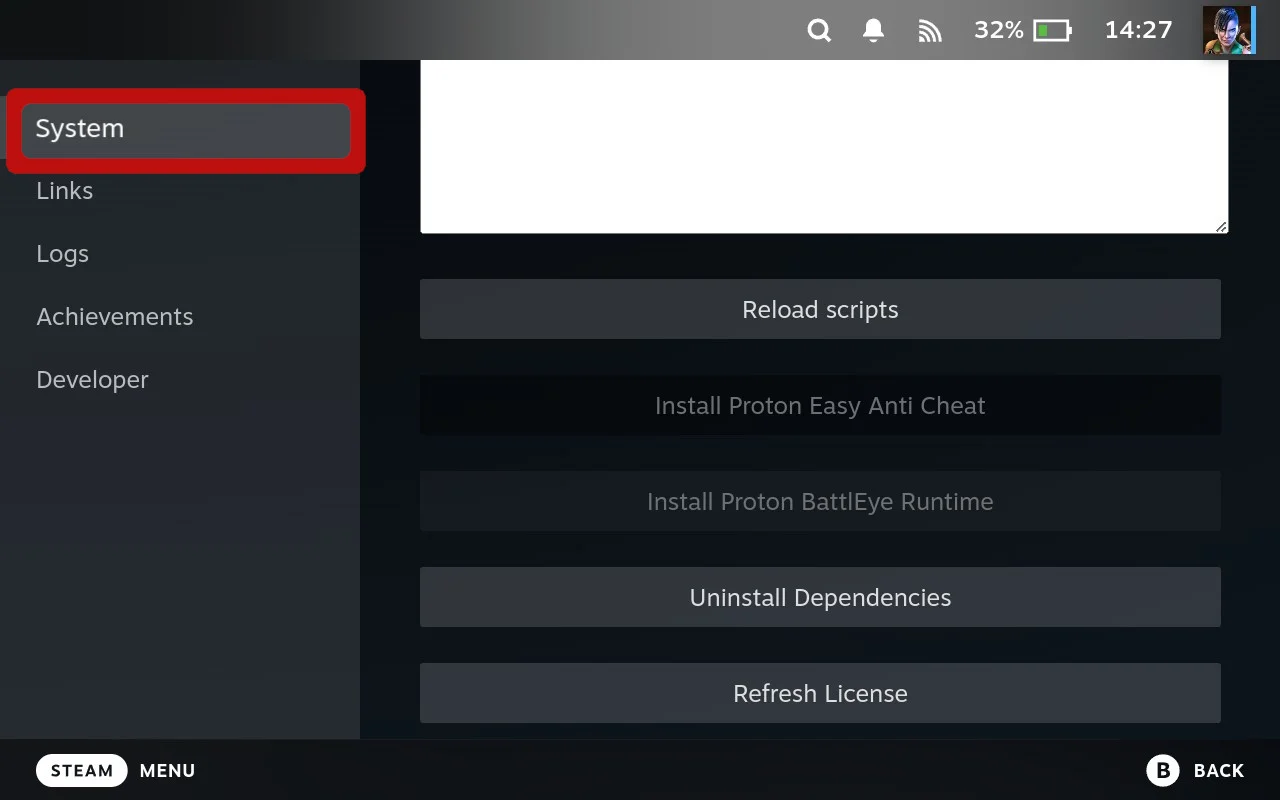
Junk Store 2.0
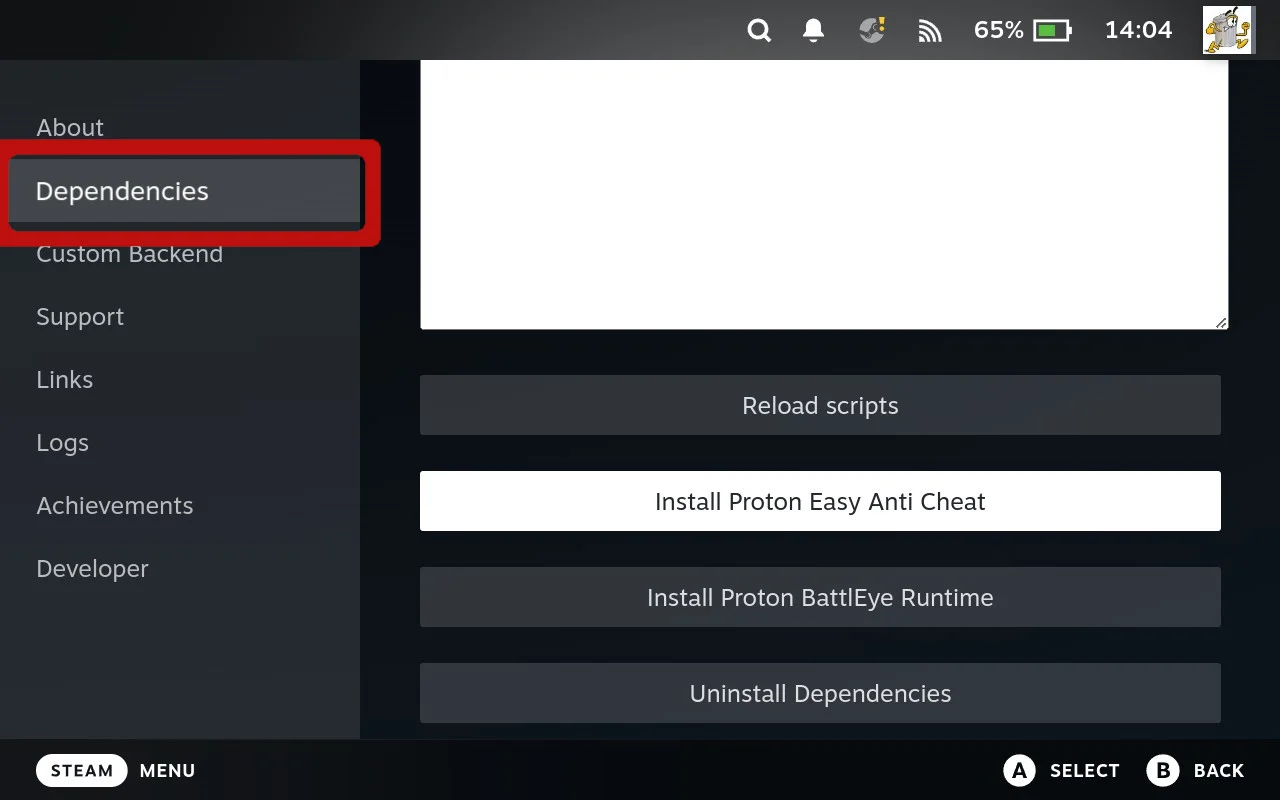
Decky Plugin
- Scroll down until you see Install Proton Easy Anti Cheat and Install Proton BattlEye Runtime
- Select the one(s) you need
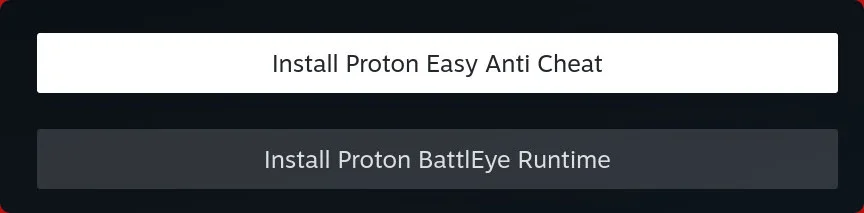
No restart required. If the options are greyed out, they’re already installed.
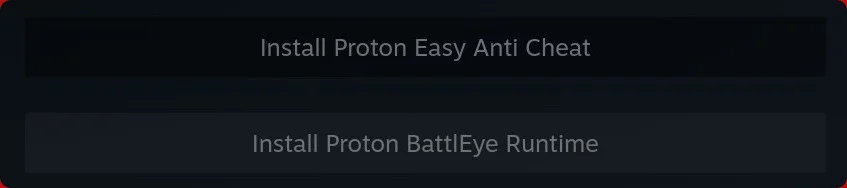
How to Enable Anti-Cheat for a Game
- From the game page in Junk Store, click the Settings menu (cog icon)
- Select Proton config
- Find the Anti-Cheat section with toggles for:
- EAC Runtime
- BattlEye Runtime
- Enable the toggle for whichever anti-cheat your game uses
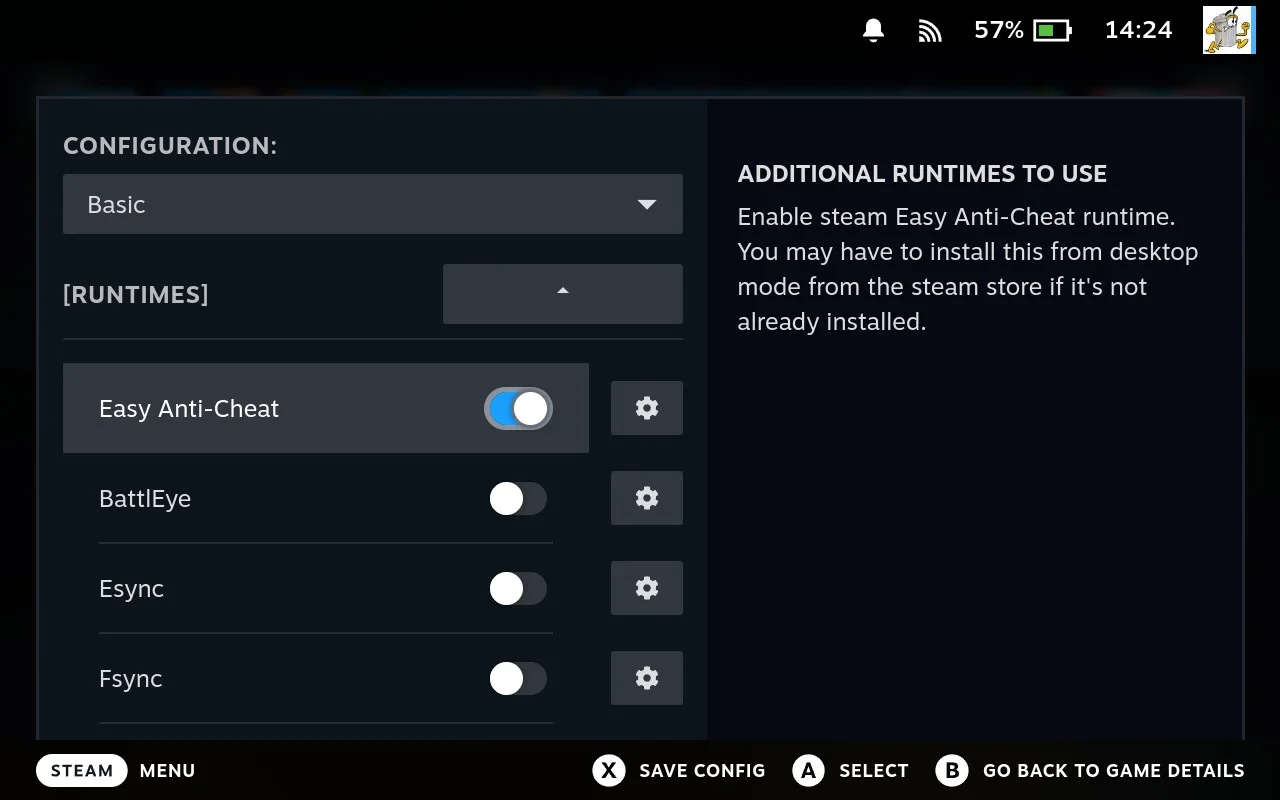
Important: Press X to save your changes!
Troubleshooting
Game still not working?
- Make sure you're using a compatible Proton version (GE-Proton often works best)
- Some Epic games also require the EOS overlay to be installed and enabled for the game
- Check ProtonDB or our tested games list to see if the game is known to work
Cheers, The Junk Store Team
Ready for seamless Steam Deck gaming?
🚀 Try Junk Store 2.0 Free for 7 DaysGame Mode native - the way handheld gaming should be
Have questions about this tip? Join our community on Discord or Reddit!